
AI Assistant
Icon: 
Keyboard shortcut: CTRL-SHIFT-A (macOS: Cmd-Shift-A)
Description
The AI Assistant is a multi-session workbench for asking questions about the pipeline or workflow you have open. Sessions stay available while you move between files. Open it as:
-
a left-toolbar perspective
-
a floating window (Tools → AI Assistant window, or the Float toolbar button)
-
a bottom-dock tab (the Dock toolbar button)
It is off by default. Nothing is sent to a language model until you enable it and create an AI Provider.
See AI technology for providers, privacy, and how other plugins add assistants.
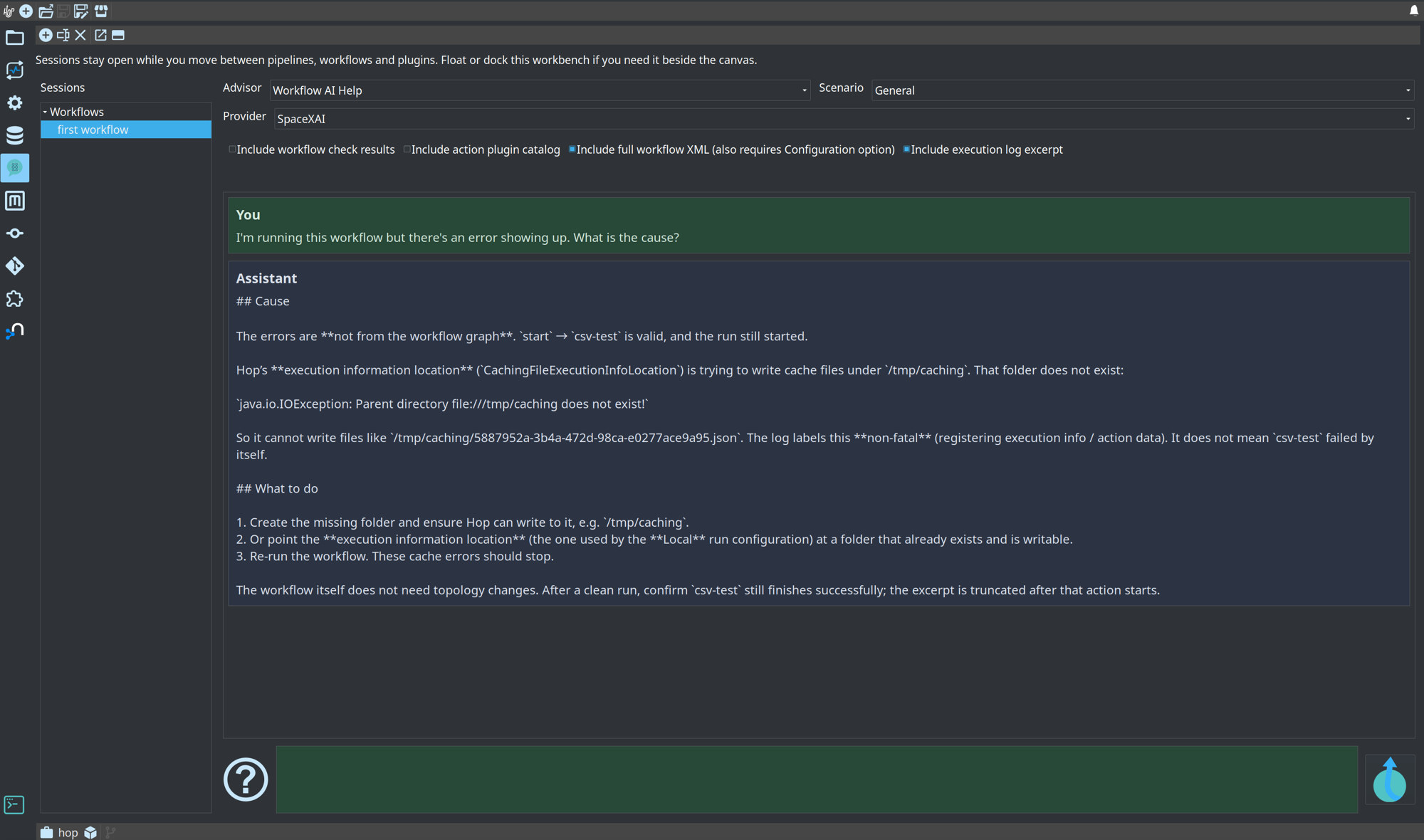
Enable the AI Assistant
-
Open the Configuration perspective → Plugins → AI Assistant.
-
Check Enable the AI Assistant. While it is off, the assistant does not open from the toolbar, the canvas, the Tools menu or the shortcut; they say where to enable it. The perspective still shows saved conversations, but nothing can be asked.
-
Optionally pick a Default AI provider. The setting applies to every project, while AI providers are metadata of a project. When the open project has no provider by that name, a note below the field says so, and new sessions use the provider picked last in that project.
-
Extra context is sent with every question. It is empty by default: the notes that come with the AI plugin (see Always sent) already say that metadata names are case-sensitive (
localis notLocal), that pipeline and workflow run configurations are different metadata types, and that Hop uses pipelines and workflows, not Kettle transformations and jobs. Add project conventions here. -
Context files is empty by default. List VFS paths, one per line, of files with standing instructions for the assistant, for example
${PROJECT_HOME}/ai-assistant.md. Add a file… browses for one and adds it on a new line; a file in the project is added as${PROJECT_HOME}/.... Existing files are appended to the instructions; missing files are skipped. Only list files you wrote for the AI Assistant. A project’sAGENTS.mdis usually written for coding agents, and a file from a project you did not write can steer the assistant. -
Leave Allow sending full XML unchecked unless you explicitly want questions to include the full pipeline or workflow XML. This is a second gate: the session checkbox cannot send XML until this option is on.
-
When a window closes during a question decides what happens to a question that is still waiting for its answer when you close the floating window or the dock tab. Finish in the background (the default) records the answer in the session, so you find it when you open the session again. Cancel the question stops waiting, as Stop does. Exiting Hop GUI always stops a question that is still waiting; the session shows that it was not answered. Moving the assistant with Float or Dock is not a close: the question goes on in the new place.
Create at least one named provider in the Metadata perspective (AI Provider) and use Test on the editor to confirm the endpoint responds. Put the API key in an environment variable or a variable resolver, not as a literal in the metadata JSON. See Secrets and personal information.
Version control
AI-applied edits can change pipelines, workflows and metadata. Graph Undo only reverses some canvas edits. Metadata saves and pasted transforms or actions are not undone that way.
Before you apply proposals:
-
Keep the project in Git (or similar version control).
-
Create a feature branch.
-
Apply and review. Revert selected files, or the whole branch, if the result is not what you wanted.
The assistant shows this reminder on an empty session, in Configuration → Plugins → AI Assistant, and on the review dialog above Apply selected.
Open a session
From a pipeline or workflow graph:
-
toolbar AI Assistant (with exactly one transform or action selected, that node is the focus)
-
right-click the canvas → Basic → AI Assistant
-
right-click a transform or action → Basic → AI Assistant (sets that node as the focus)
Those actions open a floating window so the pipeline or workflow stays on screen. If the assistant is already docked or already floating, that layout is reused.
The workbench reuses the session of that pipeline or workflow when there is one, also after you saved a new file for the first time, or closed and reopened it. Two files with the same name in different folders each get their own session.
New session (+) starts a session for the pipeline or workflow that is open in the Explorer perspective.
With no file open it starts a session that is not linked to one; the pipeline and workflow advisors need a file, so open one and click Link to the open file on the session toolbar.
CTRL-SHIFT-A (macOS: Cmd-Shift-A) on an open pipeline or workflow does what AI Assistant on its toolbar does. Elsewhere it opens the perspective.
Sessions belong to the project they were started in: switching projects shows that project’s sessions.
With Keep conversations after Hop GUI closes (Configuration → Plugins → AI Assistant, on by default) they are saved per project in the audit folder, ${HOP_AUDIT_FOLDER}, where Hop GUI also remembers the open files of each project.
That folder is on your machine and outside the project, so conversations do not end up in version control.
Questions, answers, proposals and the session options are saved as plain text; the context sent with a question is not.
What you type in a question is saved as you typed it, so do not paste secrets or personal data into questions, or turn the option off.
When you close a pipeline or workflow, its session lets go of it; open the file again to continue the conversation.
Closing a session that has a conversation asks for confirmation first, and stops a question that is still running.
Closing the window or dock tab during a question lets it finish in the background, unless When a window closes during a question is set to Cancel the question.
Using the workbench
Each session has:
-
Assistant — the pipeline or workflow assistant (other plugins add assistants for their own file types; the combo only lists the assistants that match this session)
-
Scenario — General, transform/action selection, error diagnosis, or design
-
Provider — named AI Provider metadata. A new session takes the Default AI provider of the configuration, or else the provider you picked last in this project, also after Hop GUI restarts
-
Sharing — a one-line summary of what this send includes: what you chose first (the focused node, settings, catalog, log, …), then the basics that always go along. Hover it for the full list. Expand it to opt in to extra context (see Context inclusions: send the minimum). Most extras start off; the plugin catalog is on by default so proposed transform/action ids match installed plugins. Select metadata… chooses which named metadata objects to send. Other plugins may add a Select… button beside an inclusion (for example catalog sources).
-
a transcript and a question field at the bottom (pastel input, Hop logo to send;
Ctrl-Enter/Cmd-Enteralso sends). Drag the bar between them to give either more room. -
when the session was opened on a transform or action, a line under Provider names it: its settings go with each question. Clear removes the focus so you ask about the whole pipeline or workflow
Every question sends the context that is checked at that moment, including follow-up questions. After the pipeline or workflow has run, Include execution log excerpt switches on by itself, visibly in the Sharing line, and the log of the latest run is sent. When you switch it off, that holds until the next run: a new run brings a new log, and the option switches on again. The previous questions and answers of the session are sent as conversation history.
Context inclusions: send the minimum
The advisor plugin decides what can be shared. By default little extra is shared — the collapsed Sharing line is the short version of the current send. The plugin catalog is on by default so apply-able proposals can use real plugin ids.
Click the line (or the arrow) to expand the checkboxes. Every checked inclusion is copied into the prompt that goes to the language-model service. That has two costs: tokens (money and latency) and exposure (anything in the prompt leaves your machine). Turn on only what the current question needs, then collapse the panel.
Hover a checkbox for a short reminder of cost and risk. The collapsed Sharing line lists what you chose first and sums up the items that always go along as the basics; hover it for the full list with a short explanation of each. Show what is sent… shows the exact text.
Before a question is sent, the assistant estimates its size: the instructions, the checked context, the conversation history and room for the answer. When that clearly exceeds the Context size of the AI Provider, the question is not sent and the transcript explains what to uncheck. This matters most for local Ollama models, which would otherwise drop the start of the prompt without a word. For a hosted provider without a Context size, the question is checked against 200000 tokens for Anthropic and 128000 for the others.
The assistant answers in the language of your question.
Always sent
Regardless of the checkboxes, every turn includes:
-
your question
-
a compact structure of the open file (transform or action names, plugin ids, hops, optional focus node)
-
Extra context and Context files from Configuration → Plugins → AI Assistant (when notes are filled in, or when listed files such as
${PROJECT_HOME}/ai-assistant.mdexist) -
plugin notes from
ai-context.md, andai-context/pipeline-advisor.mdorai-context/workflow-advisor.md, in the AI plugin folder (plugins/tech/ai). Hop ships facts there that small models often get wrong, such as case-sensitive metadata names and run-configuration types. You can read and edit them; other plugins can add their own
Every turn also includes a short summary (file name, counts, parameter names — not values).
A question that asks for a change also gets the proposal format for its kind of file and the metadata type keys (for example rdbms); when it concerns a database, also the database plugin ids (POSTGRESQL, MYSQL, …) so SAVE_METADATA can set the connection type.
A question that only asks for an explanation ("what does this do?", "why did it fail?") goes without them, which saves about 3,000 tokens.
Transform and action settings list only the values that differ from the plugin’s defaults.
Local folders are sent as variables: the project folder as ${PROJECT_HOME} and your home folder as ${user.home}.
That is usually enough for "what does this graph do?", hop problems, and naming questions.
Optional inclusions
| Checkbox | Default | When it is sent | What it adds, and when to use it |
|---|---|---|---|
Include transform / action settings |
On |
Every turn while checked |
The settings of each transform or action, as shown in their dialogs: SQL, file names, connection names, field lists and so on. Without them the model can only see names and hops, and cannot explain what a pipeline does. Password fields are never sent, long texts and lists are shortened, and the total is capped. Uncheck it when settings hold values that must not leave your machine. |
Include pipeline / workflow check results |
Off |
Every turn while checked |
Validation messages for the open file. Useful for most questions. Can mention file paths and connection names. |
Include transform / action plugin catalog |
On |
Every turn while checked |
Ids and names of installed plugins (capped). Needed so |
Include full pipeline / workflow XML |
Off |
Every turn while checked, and only if Configuration → Plugins → AI Assistant → Allow sending full XML is also on |
The saved topology XML (SQL, filenames, notes, field mappings). Highest token cost and highest leak risk. Use only when the structure and settings are not enough to answer, and only after secrets are variables rather than literals. |
Include execution log excerpt |
Off, on after a run |
Every turn while checked |
A truncated excerpt of the log of the latest run. Switches on by itself after a run; when you switch it off, that holds until the next run. Needed for runtime errors. Logs can contain row samples, paths and resolved values. Leave off unless you are diagnosing a failed run. |
Include selected metadata |
Off |
Every turn while checked |
JSON of metadata objects you pick with Select metadata… (connections, run configurations, and so on). Default is none. Use this when the question is about a named connection or similar. Passwords and API keys are redacted; still prefer variables over literals. Do not select objects that hold personal data unless the question needs them. |
Redaction (see Secrets and personal information) runs on check results, XML, logs and selected metadata. It is a last line of defence, not a reason to send more than you need.
Checking Include selected metadata with nothing chosen opens the picker. The tree lists metadata types that have at least one object. Check only the elements the current question needs, then OK. None clears the selection.
Recommended combinations
| Question | Checks | Catalog | Logs | XML |
|---|---|---|---|---|
What does this graph do? / hop or naming issue |
On |
Off |
Off |
Off |
Which transform or action should I add? |
On |
On |
Off |
Off |
Why did the last run fail? |
On |
Off |
On |
Off |
SQL, field mapping or options inside a transform or action |
On |
Off |
Off |
On (only if needed) |
Follow-up after the first answer |
As needed |
As needed |
As needed |
As needed |
Follow-up questions send what is checked, like the first one. Uncheck what the next question does not need.
Secrets and personal information
The assistant is only as safe as the project you point it at. If a password, token or personal record is hard-coded in a pipeline, workflow, metadata object, note, SQL statement or Data Grid sample, it can appear in XML, check results or logs and be sent to the AI service.
Set this up before you enable the AI Assistant:
-
Never hard-code secrets. Not in pipelines, workflows, metadata (including AI Provider API keys), notes, SQL, or sample rows.
-
Put values in an environment configuration file as variables, for example
${DB_PASSWORD}or${AI_API_KEY}. Keep those files outside the project folder and out of the project git repository. See Best practices: security. -
Better: store the secret in a keystore or vault and reference it with a variable resolver, for example
#{vault:secret/data/database:password}. The environment file then holds only the resolver expression. -
Give secret variable names a recognizable pattern (
PASSWORD,SECRET,TOKEN,PASSWD). Hop Gui masks those values in theCtrl-Spacepicker. -
Keep personal information out of anything the assistant might send: no customer names, emails, national ids or row samples in notes, Data Grids, log messages, or transform names.
Before anything is sent, the assistant masks:
-
every value Hop stores encrypted: password fields of metadata objects (connections, storage accounts, Git connections, …) and of transforms and actions, whatever the field is called
-
values of fields, XML tags and attributes whose names end in a secret-like word, such as
password,passphrase,secret,secretKey,accessKey,privateKey,accountKey,sasKey,token,apiKey,clientSecret,credentialorauthorization -
the password in URLs such as
jdbc:postgresql://user:password@host/db
A value that only references a variable, such as ${DB_PASSWORD}, is not a secret and is sent as is, so the model can see which variable holds it.
Redaction does not catch literals in SQL, notes, free-text logs, or a plain (unencrypted) secret in a field with an ordinary name. Host names and user names are sent. The checkboxes above are the real control.
The AI Provider API key is never copied into advisor prompts.
It is still project metadata if you paste it: use ${AI_API_KEY} or a resolver there too.
Floating window and bottom dock
The same workbench can run outside the perspective, like the Database perspective and Search:
-
AI Assistant on a pipeline or workflow toolbar (and canvas Basic → AI Assistant) opens that floating window so the graph stays visible.
-
Float on the session toolbar (or Tools → AI Assistant window) opens a non-modal window you can put beside the canvas and the execution log.
-
Dock opens it as a tab in the bottom dock, in the same panel as the terminal, search, database, and VFS file explorer.
Hop GUI remembers where you put it: after Dock, AI Assistant on a toolbar opens it in the dock, and the dock tab is opened again when Hop GUI starts. Float and Dock move the assistant: moving it from the dock to a floating window closes the dock tab, and the other way around. The button of the place you are in is disabled. The assistant is open in one place at a time. Float or Dock in the perspective switches back to the files, opening the perspective closes the floating window and the dock tab, and Tools → AI Assistant window moves the assistant from the dock to a floating window, as Float does.
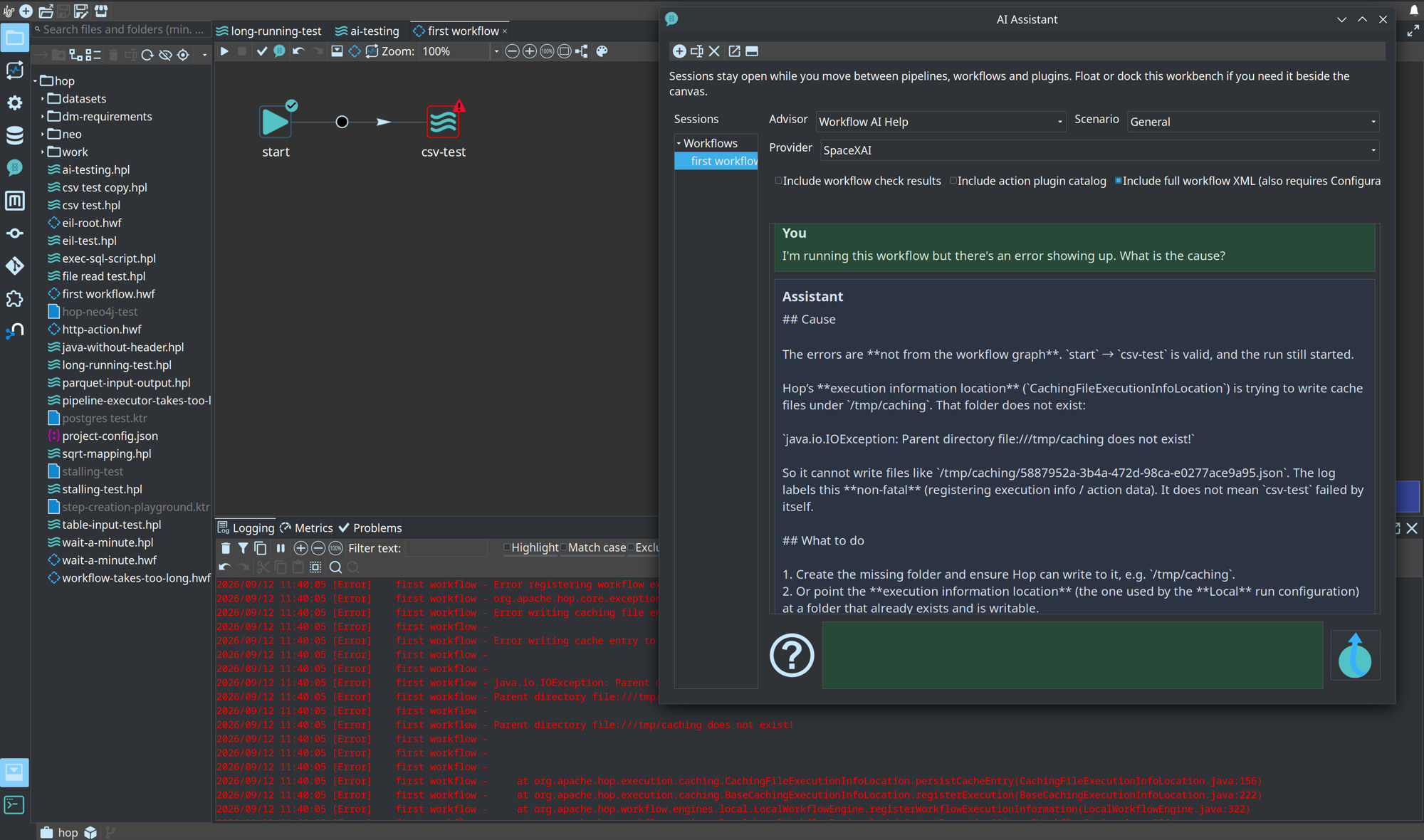
The example above is a typical error-diagnosis session: the workflow graph and Logging tab stay visible while the assistant explains that the failure is a missing execution-information cache folder, not a broken hop.
Review and apply graph edits
When you ask for a change (build, add, connect, fix, create …), the model appends proposals to its answer. Questions that only ask to explain or diagnose get a written answer without proposals. The transcript then shows Review N proposed change(s). When the proposals in an answer cannot be read, or do not follow the proposal schema (a known type, a risk level of LOW, MEDIUM or HIGH, and parameters), the assistant asks the model once to correct them; if that fails too, the transcript says why. With Structured answers on the AI Provider, the provider holds the model to that schema, so the proposals cannot come back broken.
-
The first column says per proposal whether it is applied: ✔ Apply, Skip or Blocked. Click it, or double-click the row, to switch; All and None do every row. Blocked items show the validation reason. Proposals that delete or replace something, change the settings of an existing transform or action, overwrite an existing metadata object, or that the model itself rates HIGH risk, start unchecked: select them yourself.
-
Click a row to read its preview: whether it will be applied, any warning, its type, risk and parameters.
-
Click Apply selected. The selection is applied as a whole: when one proposal fails, none of them is applied. The pipeline or workflow is put back as it was and metadata objects saved by the selection are restored. Graph edits update the open pipeline or workflow and register undo. Clipboard proposals copy Hop XML/JSON so you can paste on the canvas (Ctrl-V).
SAVE_METADATAwrites the metadata object, after a confirmation when it replaces an existing one; Undo metadata changes in the transcript restores what was replaced and removes what was created, also after Hop GUI restarts when conversations are kept. When an object was changed or deleted after the assistant saved it, Undo asks first, because those later changes would be lost. Work on a Git feature branch first so you can revert if needed. -
Follow-up turns include summaries of what you applied.
Supported pipeline types: add/delete/rename transform, add/delete hop, set location, add note, copy transform XML to the clipboard, replace an existing transform from XML. Supported workflow types: add/delete/rename action, add/delete hop, set location, add note, copy action XML to the clipboard, replace an existing action from XML. Both sessions also accept copy-metadata-JSON and save-metadata proposals.
ADD_TRANSFORM and ADD_ACTION load the plugin with defaults only. Field mappings, SQL and connection names are not applied that way.
To change an existing node’s configuration, apply REPLACE_TRANSFORM / REPLACE_ACTION (plugin type must match; name and canvas location stay). To add a fully configured node, apply CLIPBOARD_TRANSFORMS / CLIPBOARD_ACTIONS and paste on the canvas. SAVE_METADATA creates or overwrites a named metadata object; it is not undone with graph Undo but with Undo metadata changes in the transcript.
Proposals can only save the metadata a user typically asks the assistant to create: relational database connections, Cassandra, MongoDB and Neo4j connections, Neo4j graph models, data sets, unit tests, file definitions, schema definitions and partition schemas.
Other metadata can decide where prompts, secrets, files, logs or execution go (AI providers, variable resolvers, run configurations, Hop servers, logging, web services, VFS and Git connections, …). Create or change it yourself in the Metadata perspective.
Privacy and removal
-
Credentials live on AI Provider metadata and are never copied into prompts. Still prefer a variable or resolver for the key itself.
-
Passwords, API keys and similar values are masked before send. See Secrets and personal information.
-
Show what is sent… under Sharing shows the exact text of the next question, with the current options, without sending it.
-
Full XML is included only when both the session checkbox and the configuration option are on.
-
To hide the UI without deleting the plugin, add ids to
disabledGuiElements.xml(see Customize the UI):-
perspective
175-HopAiAdvisorPerspective -
pipeline toolbar
HopGuiPipelineGraph-ToolBar-10048-ai-help -
workflow toolbar
HopGuiWorkflowGraph-ToolBar-10048-ai-help -
menu
40027-menu-tools-ai-window -
metadata type
ai-provider
-
-
To remove AI entirely, delete the
plugins/tech/aiplugin folder (and disable or remove Language Model Chat if you also want no LLM client).