
Hop Gui
Hop Gui is Hop’s visual development environment. You’ll spend a lot of time here in the various perspectives of Hop GUI.
You’ll spend most of your time building, previewing running and debugging workflows and pipelines, but there’s also a lot of configuration that can be done from Hop Gui’s metadata perspective, you can search across projects with Search (CTRL-F), manage a variety of files and even version control them from the file explorer perspective and much more.
This page covers a number of topics that are very specific to working with Hop Gui. Check the chapters on pipelines and workflows to learn more about creating and running pipelines and workflows in Hop Gui.
Covered here are:
-
File Dialog: the versatile Hop file browser and chooser dialog.
-
Popup Dialog: the versatile popup dialog to work with metadata, workflows, pipelines and hops
-
Notes on pipelines and workflows: canvas notes, including Markdown formatting, types, links, and images
-
Perspectives: the various perspectives in the Hop Gui
-
AI Assistant: multi-session assistant for pipelines and workflows (
CTRL-SHIFT-A; off by default) -
Search: Search Everywhere (
CTRL-F), limits, and results panel -
Working with git: Manage files in the git version control system
-
Keyboard Shortcuts: a list of the keyboard shortcuts that are available in Hop Gui.
-
Hop Web: a web version of Hop Gui that provides the exact same functionality and user experience as the desktop version. For Docker volume mounts and upgrades, see Hop Web in Docker.
Bottom panel
The button at the bottom left of the window shows or hides the bottom panel. With the panel open and nothing in it, the tab bar shows only +.
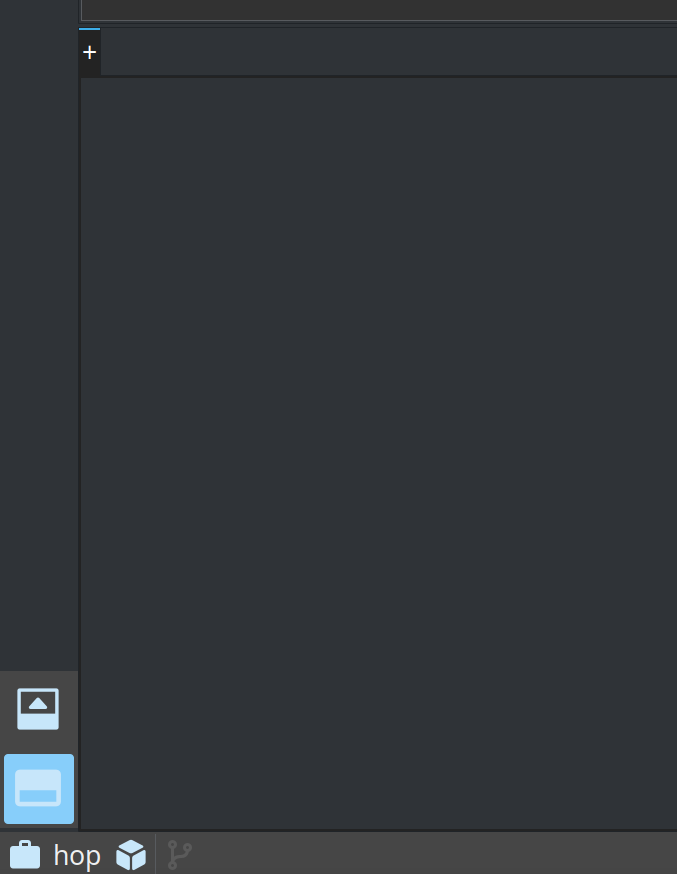
Click + and choose a tool: Terminal, Search, Database, or VFS File Explorer. Terminal and search add another tab each time. Database and the VFS file explorer open their tab, or focus it when it is already there.
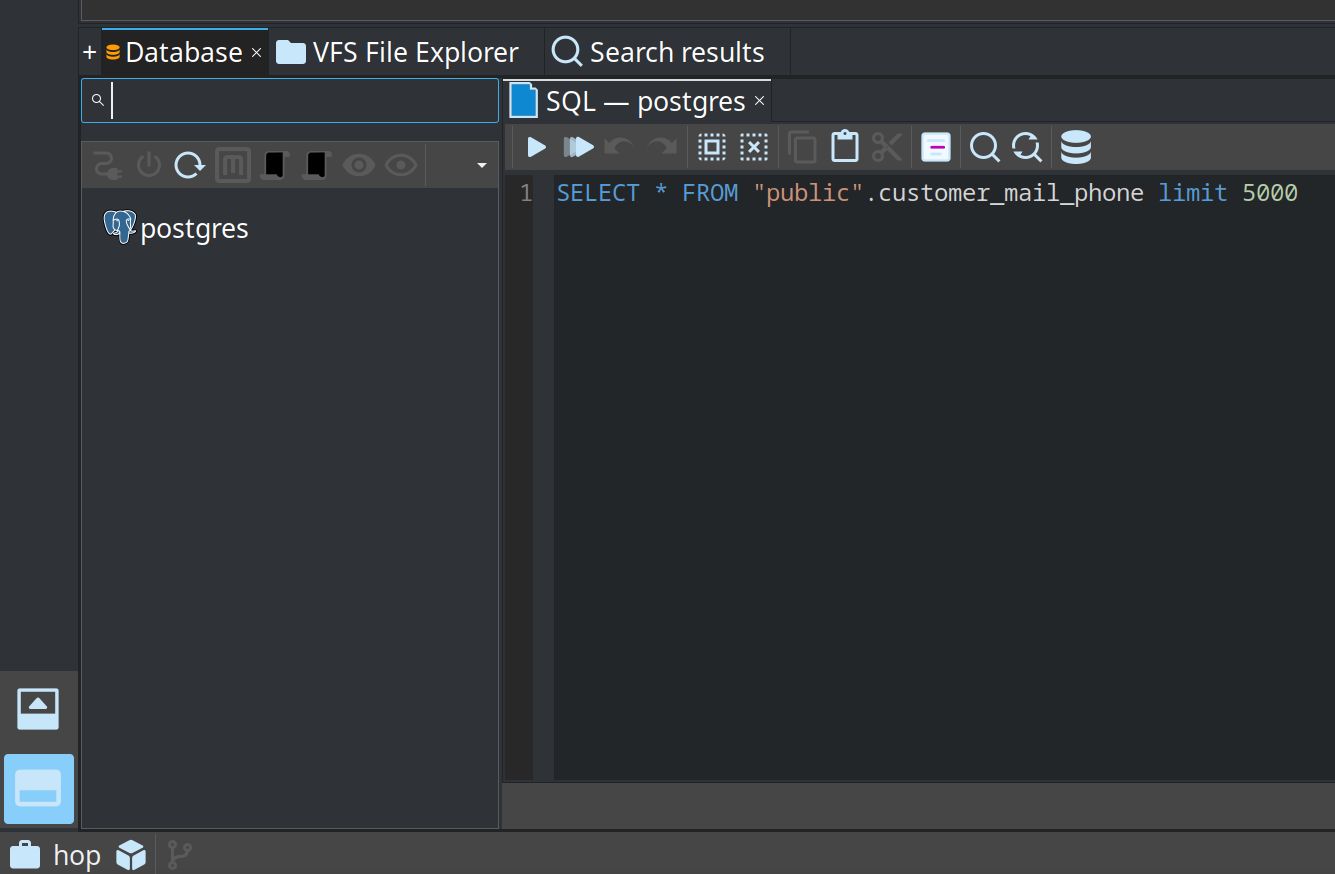
The execution-results button stays above the panel button and is only there in the file explorer, on a pipeline or workflow.
CTRL-J shows the terminal, and hides the panel when a terminal tab is already selected.
CTRL-SHIFT-J opens another terminal.
CTRL-F still opens Search Everywhere.
Show all results opens a search tab in the bottom panel, and + → Search does the same for an empty query.
In the Configuration perspective, on the General tab, Enable embedded terminal turns the built-in terminal off on desktops where it misbehaves.
Search, the database workbench, and the VFS file explorer stay available.
Hop Web has no embedded terminal.
An administrator can also force the terminal off by excluding 40010-menu-tools-terminal in disabledGuiElements.xml.