
Logging
Every workflow or pipeline you execute through Hop Gui or Hop Run and a lot of the other tools generate logging as logging text in the most obvious form.
Hop allows data developers to influence how, where and at which level of detail logging information is generated and where it is written to.
Levels
Descriptions
The amount of text logging generated depends on the logging level which is used when executing a workflow or pipeline:
| Level | Description |
|---|---|
NOTHING |
No logging is generated |
ERROR |
Only errors are reported |
MINIMAL |
The bare essential, nothing more |
BASIC |
The standard logging which tries to be concise and informative |
DETAILED |
More logging information about what happens behind the scenes is reported |
DEBUG |
A lot of information is produced, often with specific values being reported |
ROWLEVEL |
Values are reported on an individual row level |
Runtime levels
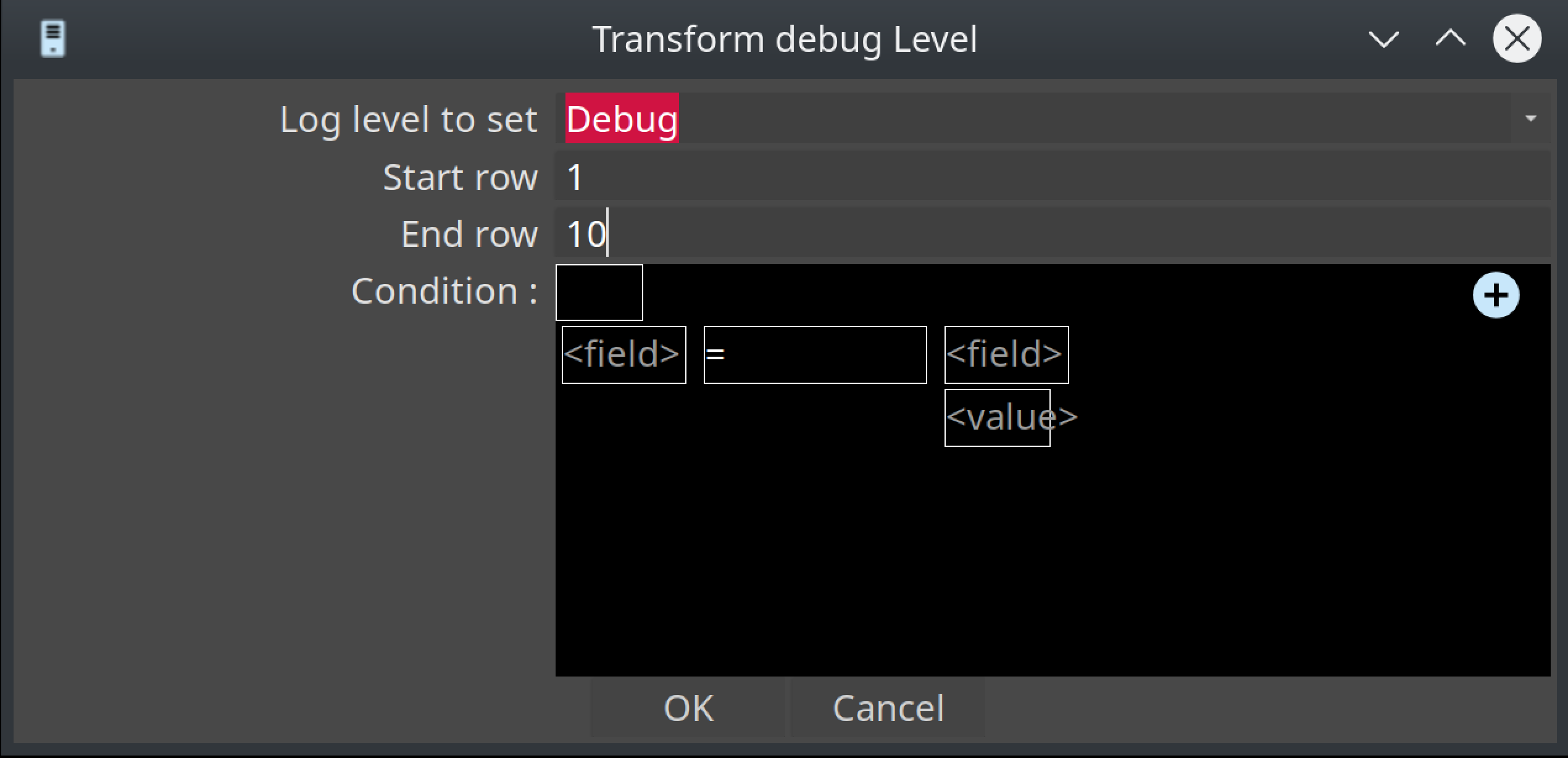
The logging level can be specified when executing using hop-run or in the Hop GUI. It is also possible to use the debug plugin to set custom logging levels on a transform:
You can set a custom logging level for this particular transform and only for certain rows of data:
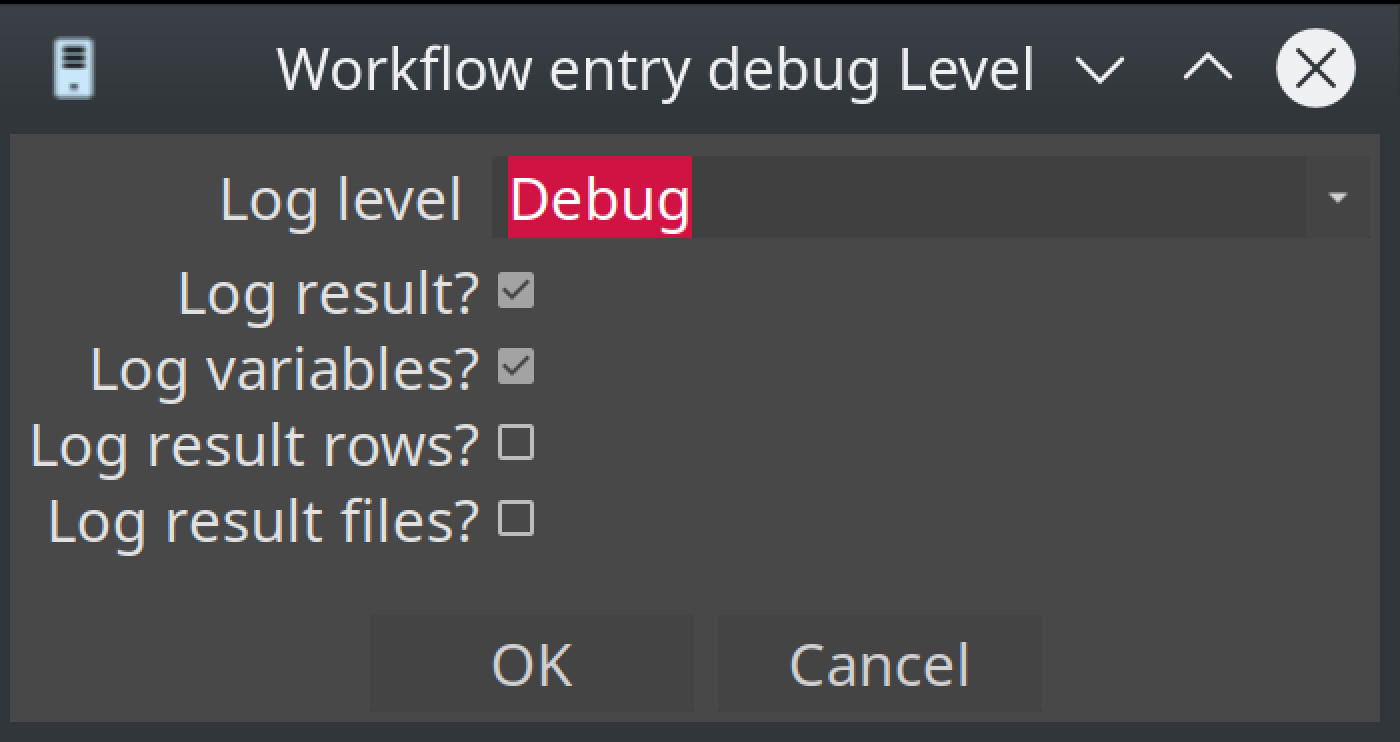
You can do likewise for a workflow:
Hop GUI logging
The logging file of the Hop GUI is saved in the audit/ folder (or in the folder set by HOP_AUDIT_FOLDER) in the hopui.log file.
Tools logging
Command line tools like hop-run, hop-conf and hop-server write their log to the console. To keep it in a file, for example when Hop runs on a server, redirect the output and the errors to a file. On Linux and macOS, this example writes every run to a new file named after the current date and time:
./hop-run.sh -j my-project -r local -f my-workflow.hwf &> "hop-run-$(date +%Y-%m-%d_%H-%M-%S).log"On Windows, use > hop-run.log 2>&1 after the command.
hop-run can also write its log to a file itself, with --logfile.
Behind the scenes Hop also sends its log to SLF4J, with Log4j2. To change the format or send the log to another system, bring your own Log4j2 configuration, as described in SLF4J and the Log4j2 binding in the developer manual.
Logging plugins
Actions
Write to log
The Write to log action writes a specific string to the Hop logging system.
Check the Write To Log page for more details.
Metadata Types
Pipeline Log
A pipeline log allows to log the activity of a pipeline with another pipeline.
Check the pipeline log and logging reflection pages for more details.
Workflow Log
Allows to log the activity of a workflow with a pipeline.
Check the workflow log and logging reflection pages for more details.
Perspectives
Neo4j
Hop can write execution logs for workflows and pipelines to a Neo4j database.
Check Graph logging perspective page for more details.
Transforms
Write to Log
This transform writes information to the Hop logging system.
Check the Write To Log page for more details.