
Database perspective
Icon: 
Keyboard shortcut: CTRL-SHIFT-D (macOS: Cmd-Shift-D)
Description
The Database perspective is a non-modal alternative to the SQL editor dialog. Use it to browse the relational connections in the current project, run SQL, preview tables and inspect column and index metadata without blocking the rest of Hop Gui.
It is not a full database IDE. There is no visual query builder, autocomplete, or grid editing.
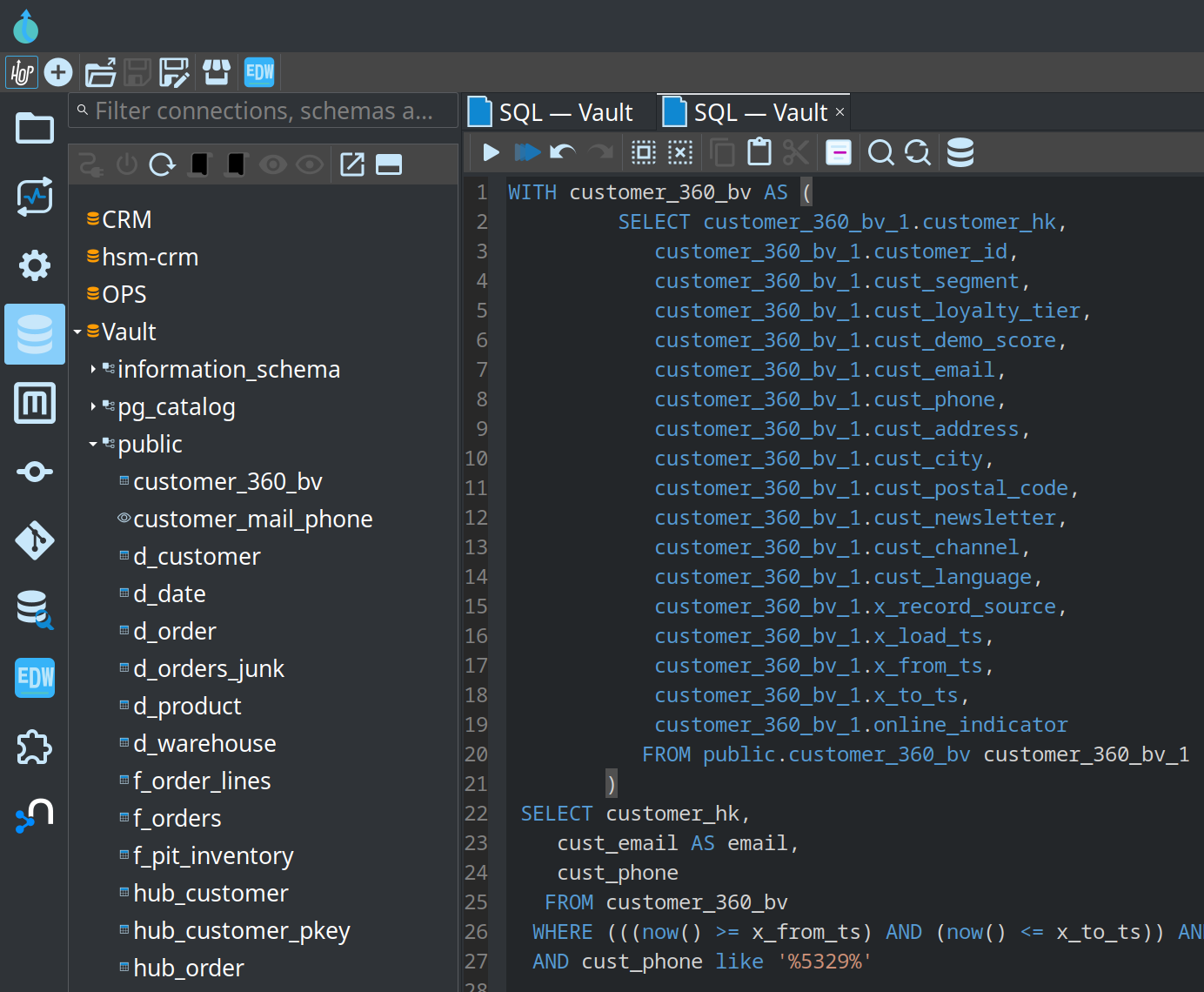
Connection tree
The left-hand tree lists every relational (DatabaseMeta) connection in the project. A filter field above the tree matches connection, schema and table names. Expand/collapse of schema (and catalog) folders is remembered when you filter or refresh the tree.
Toolbar:
-
Connect — load schemas and their tables (background; does not freeze Hop Gui)
-
Disconnect — drop the loaded schema list
-
Refresh — reload the selected connected connection, or the connection list
-
Edit connection — open this connection in the Metadata perspective (or a dialog if that perspective is disabled)
-
Open SQL editor — new SQL tab for the selected connection (
SELECT * FROM tablewhen a table is selected) -
Generate DDL —
CREATE TABLEfor the selected table, opened in a SQL tab -
Preview table — run
SELECTwith a dialect-aware row limit (the Query row limit in Configuration → Plugins → Database Perspective, default 1000) -
Show object information — columns, indexes, and a DDL tab with
CREATE TABLEorCREATE VIEW. Views use the catalog definition when the database provides it (INFORMATION_SCHEMA,pg_get_viewdef,SHOW CREATE TABLE, and similar).
Double-click a disconnected connection to connect. Double-click a schema (or catalog / folder) to expand or collapse the tables and views underneath. Views use the view icon. Double-click a table or view to preview it (SELECT * FROM … plus the connection’s limit clause for the configured query row limit).
SQL editor
Each SQL tab is bound to one connection.
-
Run on the SQL editor toolbar (
Ctrl+Enter/Cmd+Enter) executes the statement around the caret. -
Run all (
Ctrl+Shift+Enter/Cmd+Shift+Enter) executes every statement in the editor. -
If the SQL tab’s connection is not connected, Hop asks to connect first (
MessageDialogWithToggle). Check Don’t ask again to enable auto-connect; that option also lives in the Configuration perspective under Plugins → Database Perspective. -
Format SQL (Apache Calcite plugin) pretty-prints the selection, or the whole buffer when nothing is selected. The formatter follows the tab’s connection dialect when it can. Layout options live in the Configuration perspective under Plugins → Apache Calcite SQL formatter. See Apache Calcite.
-
If you have a selection, that selection is executed (all statements in it).
-
If you do not, Run takes the blank-line-delimited block around the caret, splits on
;, and runs the statement at the caret. A leftover clause after a semicolon (for exampleWHEREon the next line) is not executed; use Run all to send every statement. -
Select the executed SQL in the editor (Configuration perspective, Plugins → Database Perspective, on by default) highlights only the statement(s) that were sent.
-
Results appear in a sash under the editor (one tab per query, plus a messages tab). Close hides the results panel; the next run shows it again. Open in separate window (left of Close) opens the selected result table in a separate window.
-
Queries are capped at the Query row limit (Configuration perspective, Plugins → Database Perspective, default 1000). That cap is sent to the driver (
setMaxRows) as well as applied when reading rows, so aSELECT *or a SQLLIMITabove the option still does not pull the whole table. When the cap is hit, the Messages tab says so. Statement timeout ('${HOP_QUERY_PREVIEW_TIMEOUT}', seconds;0is the driver default) applies to both queries and DDL/DML.
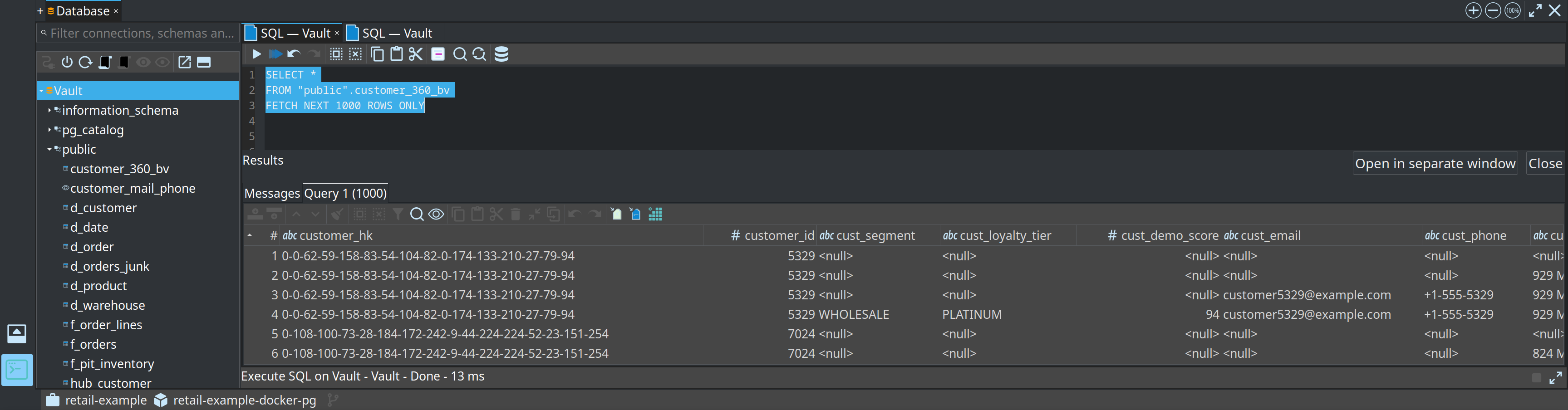
Long-running work (connect, listing, SQL, DDL, table info) is shown as a one-line status at the bottom of the right-hand side (description - connection - Done/Failed - 23 ms). Stop cancels the current operation (Statement.cancel). Expand opens the operations list; Minimize on that list returns to the status line.
Open and save .sql files with the normal File menu. Explorer .sql files stay in the File explorer; use the database icon on the content-editor toolbar to open the buffer in this perspective (you pick the connection).
Configuration
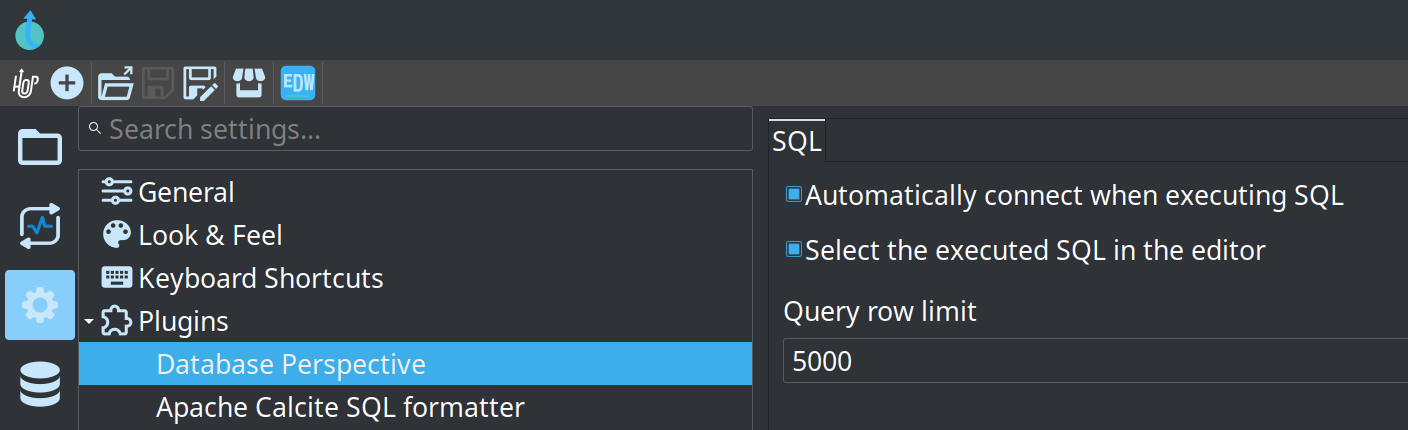
Open the Configuration perspective, then Plugins → Database Perspective:
-
Automatically connect when executing SQL — skip the connect prompt when you run SQL on a disconnected tab
-
Select the executed SQL in the editor — highlight the statement that was sent (on by default)
-
Query row limit — maximum rows shown for a SELECT and for table preview (default 1000)
Floating window and bottom dock
The same workbench can run outside the perspective, like Search:
-
Float on the connection toolbar (or Tools → Database window) opens a non-modal window you can put on another monitor while you keep editing in the File Explorer.
-
Dock opens it as a tab in the bottom dock (next to the terminal and search results). + on that panel’s tab bar does the same.
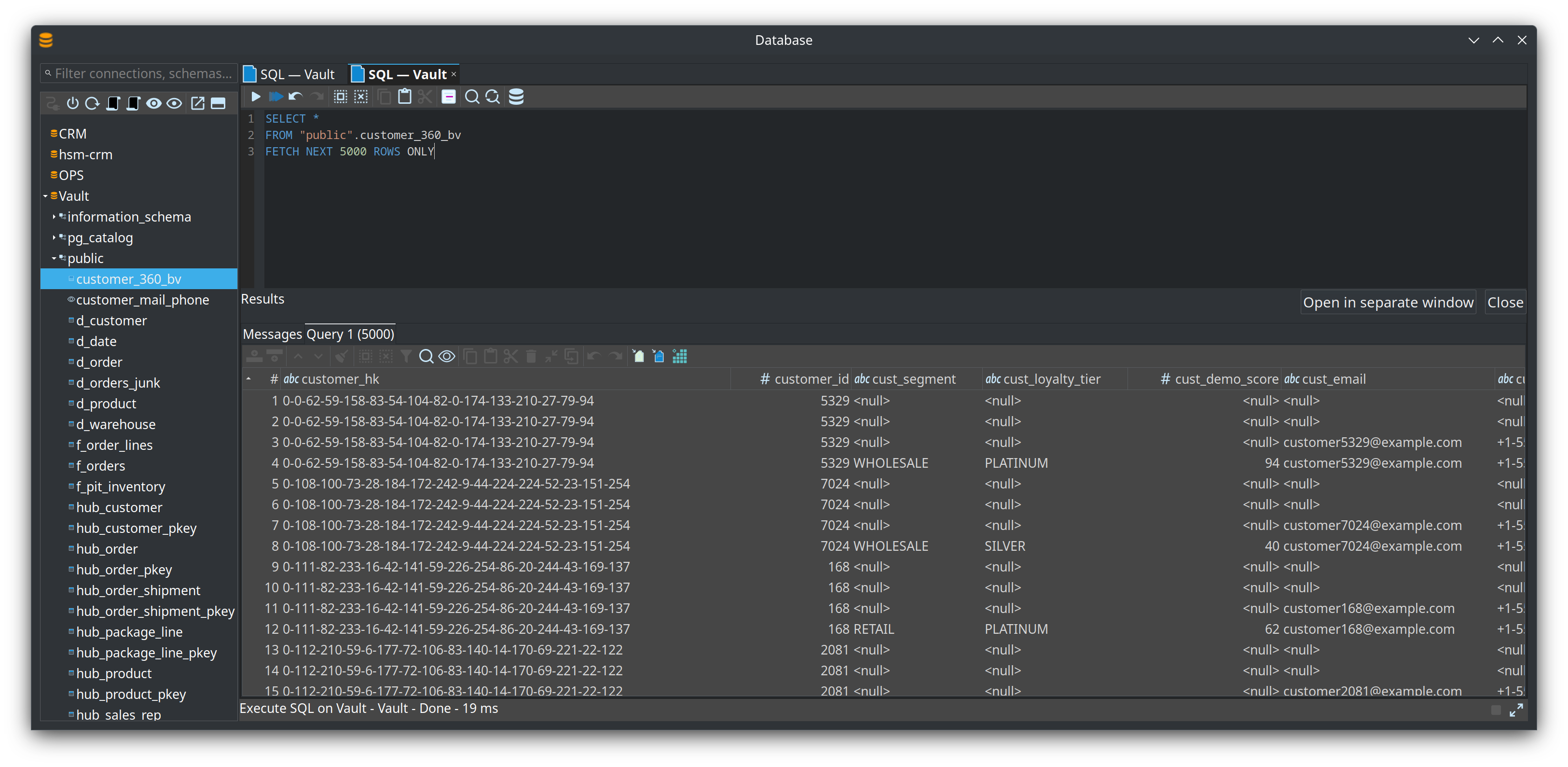
Each placement has its own workbench instance (connection tree, SQL tabs, operations). The perspective stays available with Ctrl+Shift+D. SQL editor tabs (connection, file or buffer, unsaved edits) are remembered per project when you close the window or dock and when you restart Hop Gui. Query results are not stored.
SQL on a table-output (or bulk-loader, lookup, update, …) transform dialog opens this floating window on the transform’s connection: the schema/table tree refreshes in the background while you edit and run the generated SQL. The same happens from the database explorer (Open SQL, Generate DDL, Truncate). The explorer toolbar also has Open in Database perspective, which closes the explorer and switches to this perspective on the explorer’s connection.
On the relational database connection metadata editor, Open in Database does the same from the other direction: it activates this perspective on that connection so you can explore and query immediately.