
Working with git
Version control is an important aspect of any serious data orchestration project. Hop wants to make it as easy as possible to manage versions for your workflows and pipelines. When your project folder is a git repository, Hop Gui adds git options in three places:
-
the toolbar, right-click menu and file colors of the File Explorer perspective, described on this page;
-
the branch menu in the status bar, described on this page;
-
two perspectives of their own: Git commit to review and commit your changes, and Git for branches, tags and the commit history.
File Explorer Toolbar
If you open the file explorer for a project that is not version controlled in git, the git icons in the file explorer’s toolbar will be shown as greyed-out and disabled.

If git was found (ie the project has a .git folder in the project root), these buttons in this toolbar are enabled.

The available options to work with files and the available git operations in this toolbar are briefly discussed below.
| icon | action | description | shortcut |
|---|---|---|---|
|
Open selected file |
Opens the selected file in the appropriate editor (pipeline or workflow editor for workflows and pipelines, text editor for other files). |
F3, double-click |
|
Add folder |
adds a new folder at the selected location. A popup is shown for the folder name. |
|
|
Expand all folders |
Display all nested folders in the directory tree. |
|
|
Collapse all folders |
Hide all nested folders in the directory tree. |
|
|
Delete Selected File |
Deletes the selected file. |
DEL |
|
Rename the selected file |
Makes the selected file name editable to allow renaming. |
F2 |
|
Refresh |
Refreshes the projects folder and file structure. |
F5 |
|
Show or hide files |
Show or hide files or directories. |
|
|
Select opened file |
Selects the file of the active editor tab in the tree. |
ALT+F1 |
|
Git info |
Opens a tab with the git information of the selected file or folder: status, branch, revisions and changed files. |
|
|
Git Add |
Stage the unstaged changes in the selection, including edits to files git already tracks. |
|
|
Git Revert |
Restore modified files in the selection from the last committed version (HEAD). A new staged file is only unstaged and stays on disk; deleting it is Git Clean. A dialog lets you pick the files. |
|
|
Git Clean |
Delete files that git does not track from disk. A dialog lets you pick the files. |
|
|
Git commit |
Opens the Git commit perspective to review and commit your changes. In Hop Web it opens a commit dialog instead. |





| Only the options that apply are available at a given time. Git Add is available when the selection still has unstaged changes, and it is disabled once those changes are staged. |
The git options are also available in the right-click menu of the file explorer tree.
File Explorer Tree
In the folder and file structure tree below the toolbar, files use a color coding scheme to indicate the git status of a file:
-
black: unchanged, or a deleted path. An unchanged file is the latest version in git. A deletion stays black whether or not it is staged, so it is not red.
-
grey: this file is ignored
-
green: a staged add, copy, or rename.
-
blue: a staged content change. This file is ready to be committed ('Git Commit')
-
red: an unstaged add, copy, rename, or content change. Stage it with 'Git Add' before the changes can be committed.
Branches in the status bar
The status bar at the bottom of the window shows the current branch next to the active project and environment. Click it to open the branch menu:
-
Create branch, Merge branch, Rename branch and Delete branch.
-
Push and Pull.
-
The local and remote-tracking branches. The current local branch is marked; click another name, including a remote-tracking name, to check that ref out.
Working with files in git
- Add a file
-
Click on a file that is not yet staged for commit (red), click 'Git Add'. The color of the file changes to green (staged add, copy, or rename) or blue (staged content change).
- Commit a file
-
Click 'Git Commit' to open the Git commit perspective, check the files to commit, enter a commit message and click 'Commit'. The file color changes to black (no changes).
- Show git info
-
Click on a file that is under version control (black or blue). The file explorer will show the git status for this file: the file or folder, status, branch and a revisions table (list of previous commits). Select one of the available commits to show the changed files for that revision. Select any of the files in the revision from the 'Changed files' list to show the git diff information on the right hand side. For workflows and pipelines, click 'Visual diff' to open the before and after versions of the file in new tabs. Hop will show an additional icon in the upper right corner of the action or transform icon to indicate the git change that was made (green for added or yellow for changed)
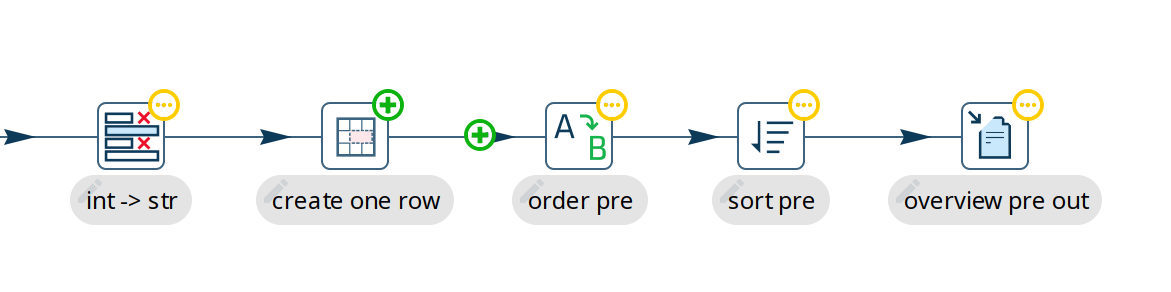
A transform or action that was only moved on the canvas is not marked as changed. Uncheck "Ignore position in the visual diff" in the configuration options below to have a move count as a change again.
A transform or action that was renamed is marked as changed, rather than as one that was removed and another that was added. The hops around it are left alone. This is recognised as long as the rename is all that happened to it, apart from a move: renaming and editing in the same commit still shows up as a removal plus an addition, because there is nothing left to recognise it by.
Git Configuration options
There are a few global configuration options available for the git GUI plugin. You can find these in the configuration perspective under the "Plugins" tab and the "git" section.
| Option | Description |
|---|---|
Enable the git plugin |
If disabled the plugin will be loaded but will not try to detect a git repository in the project folder. |
Search parent folders for git repository |
this option will search for a git repository ( |
Fetch remote changes automatically |
Fetches remote updates in the background every 20 minutes. |
Ignore position in the visual diff |
Keeps the position of transforms and actions out of the comparison, so one that was only moved is not reported as changed. Enabled by default. |