
 Execute SQL script
Description
The Execute SQL Script transform runs a SQL script either once, during the initialization phase of the pipeline, or once for every input-row that the transform receives.
|
Pipeline source when Execute for each row is off (the default). Enable that option to run the script once per incoming row; hops are then required, and hops into one-shot mode are refused. |
When used for every input row, parameters can be passed to the SQL scripts specified in the transform. Only in this mode, input fields are passed on to the next hop.
The dialog is split into General, SQL, and Parameters tabs.
General
The General tab holds the database connection and optional statistics output fields.
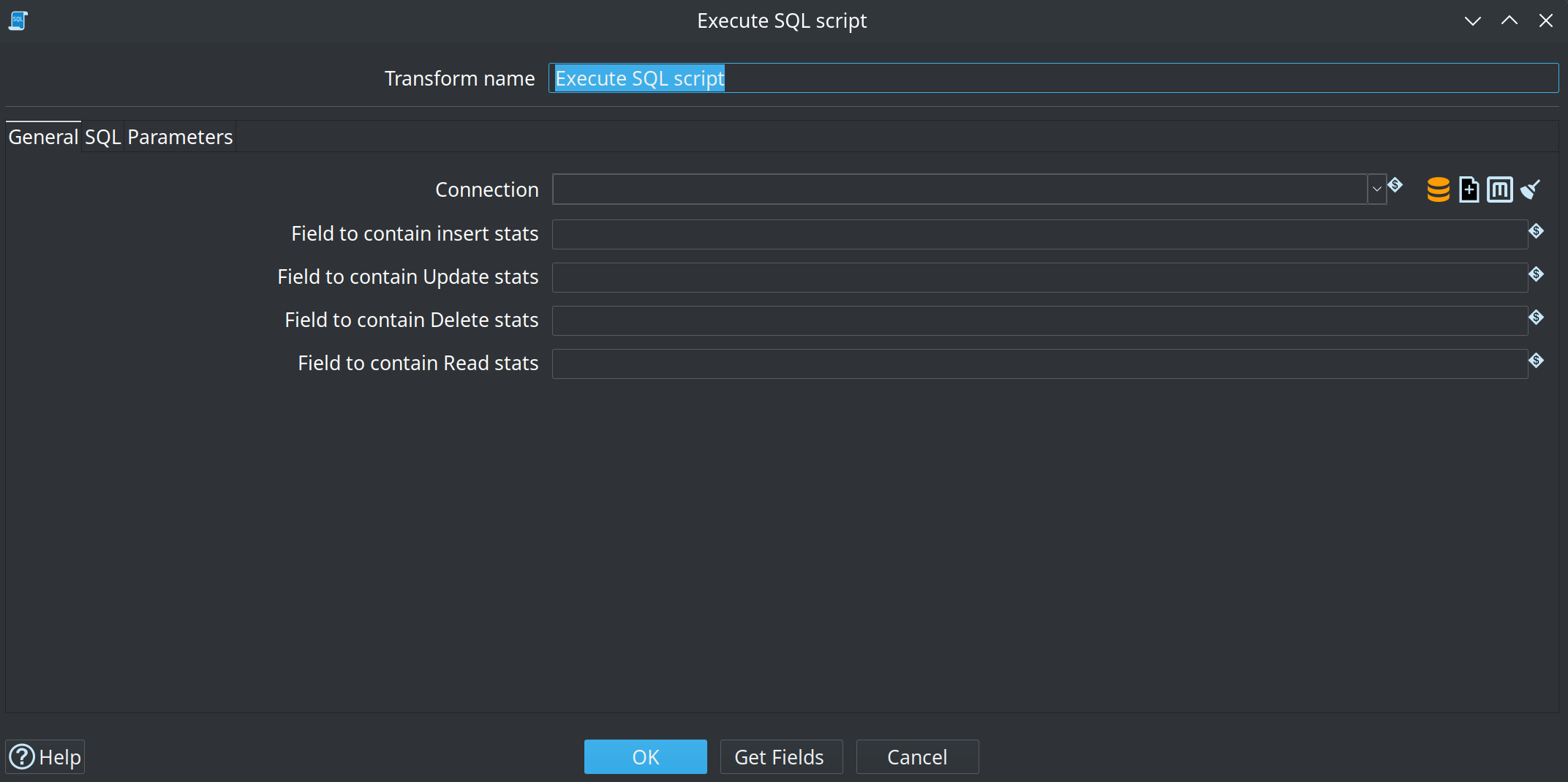
| Option | Description |
|---|---|
Transform name |
Name of the transform; This name has to be unique in a single pipeline |
Connection |
Select a database connection to use |
Field to contain insert stats |
Optional: If you want to get an additional field in our stream with the number or records that where inserted, please define the field name here. |
Field to contain update stats |
Same as insert stats, but for updated rows. |
Field to contain delete stats |
Same as insert stats, but for deleted rows. |
Field to contain read stats |
Same as insert stats, but for read rows. |
The counts come from the number of affected rows the JDBC driver reports for each statement, attributed by the statement’s verb (also behind a WITH clause). MERGE, UPSERT and REPLACE statements report a single count for the rows they inserted, updated and deleted together; that count is reported as updated rows. Rows returned by SELECT statements count as read rows, except when the SQL is sent as a single statement.
The same counts show up in the transform’s own metrics: read rows as input (I), inserted rows as output (O), updated and deleted rows as updated (U).
SQL
The SQL tab is where you specify the script to run, either inline or from a file.
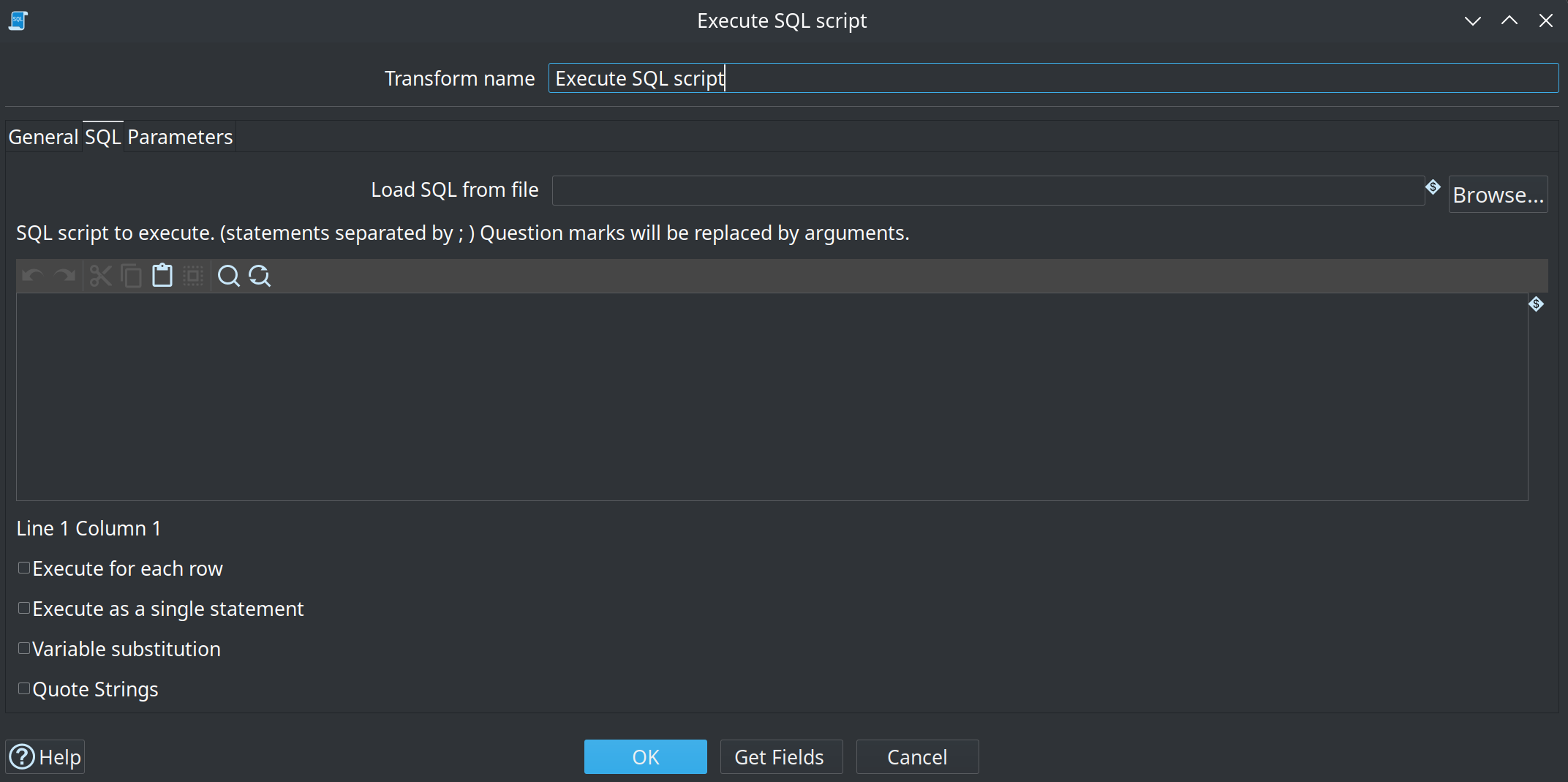
You can keep the script in the SQL editor, or load it from an external .sql file with Load SQL from file.
Use a VFS path; variables in the path (for example ${PROJECT_HOME}/sql/script.sql) are resolved.
The file is read once when the transform initializes, not once per incoming row.
When a path is set, the SQL editor shows a read-only preview of the file contents.
Question marks (?) in the file still bind to the Parameters table in the same order as for inline SQL.
Leave the path empty to edit the script in the dialog (the previous default).
Enable Variable substitution to substitute Hop variables in the SQL (inline or loaded from the file) before the statement is executed.
| Option | Description |
|---|---|
Load SQL from file |
Optional VFS path to a |
SQL script to execute |
Specify the SQL to execute. Separate statements by ; and use question marks as place holders for parameter. When Load SQL from file is set, this editor is a read-only preview of the file. |
Execute for each row? |
Select this option to execute the SQL for each incoming row. In this case input fields can be used as parameters and are passed on to the output. When this option is unchecked, the SQL statement is executed at the transform initialization phase and inputs fields are not processed. |
Execute as a single statement |
This option does not split the statements by ; and will send the whole SQL to the database. |
Variable substitution |
In case you want to use variables in the SQL, e.g. ${table_name}, this option needs to be checked. If you are using Parameter fields, they are only used in conjunction with "question marks" in the SQL (see below). |
Quote Strings? |
This option adds quotes around the string according to the database dialect and also escapes special characters like CR, LF and the quote character itself. |
Parameters
The Parameters tab lists the input fields that replace question marks in the SQL, in order. Bind parameters and the parameters table are enabled when Execute for each row is selected on the SQL tab. Use Get Fields to fill the table from the previous transform.
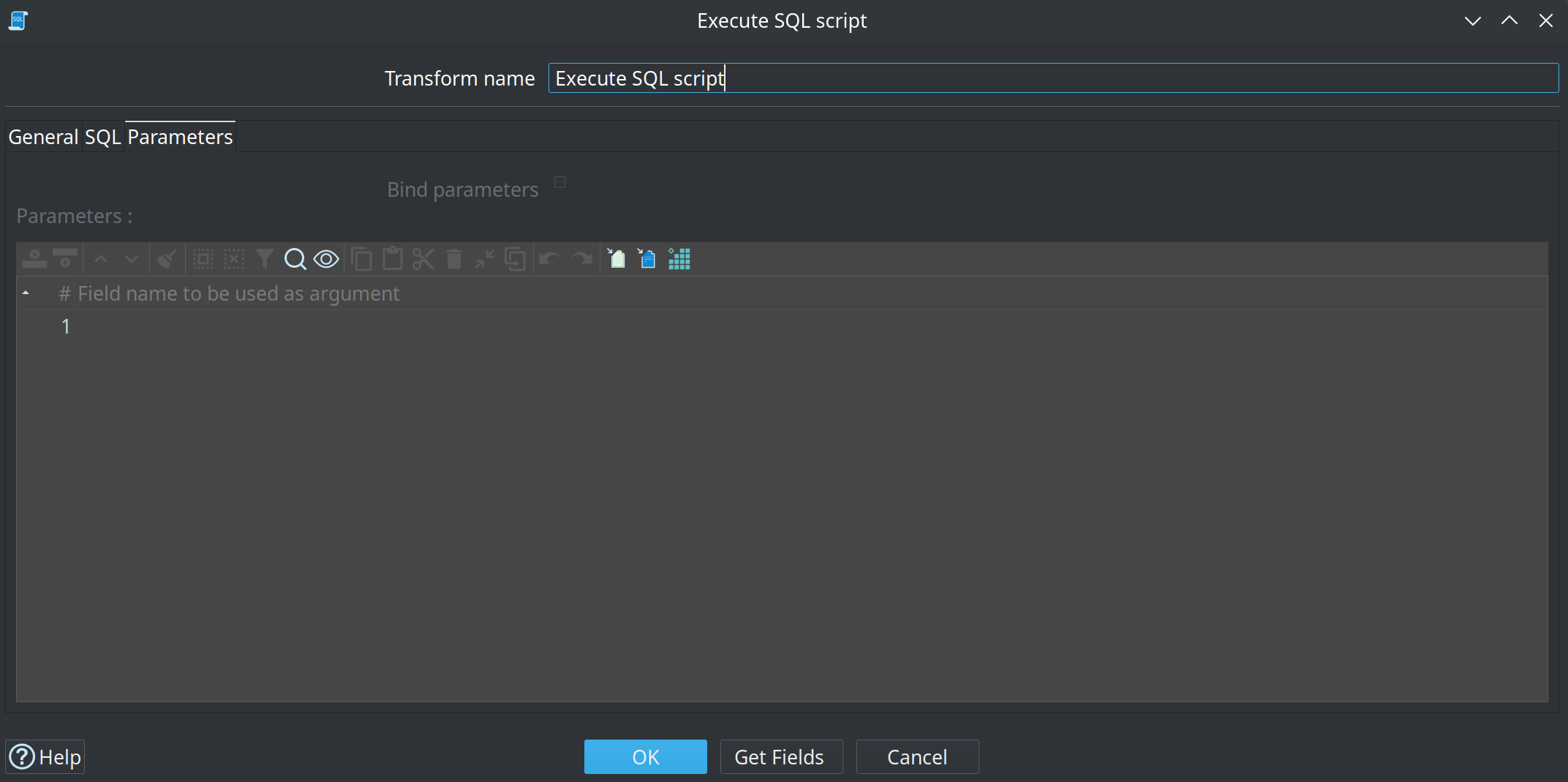
| Option | Description |
|---|---|
Bind parameters? |
Check this option to bind parameters using prepared statements, otherwise this transform will perform a literal string replacement of the parameters. |
Parameters |
The list of parameters that will replace the question marks in the query in the given order. So the first question mark will be replaced by the first parameter, the second question mark by the second parameter etc. |