
Naming Scheme
Description
A Naming Scheme describes how free-form names should be turned into consistent identifiers.
Typical uses include cleaning field names that arrive with spaces (for example Order ID → order_id), normalizing file or folder names, and applying a shared project convention (snake_case, camelCase, PascalCase, and so on).
Naming Schemes are managed as project metadata. Apply one without adding buttons to every dialog:
-
N indicator — widgets that accept a naming scheme show a small N on the right (same diamond plate as
$for variables and#for expanded integers). Click N to open the matching scheme in a dialog. If several schemes of that type exist, pick one first. If none exist, Hop creates a new scheme of that type and opens it. -
Keyboard shortcut —
CTRL-SHIFT-Non a name field (transform/action name, field cell, table name, file name, …) lists schemes of the matching type and replaces the current identifier. When the field does not accept variables,CTRL-SPACEdoes the same thing. -
TableView toolbar — Apply a Naming Scheme to a column still rewrites a whole column at once (with undo).

If only one scheme of the required type exists, apply and open both skip the picker.
A General scheme is offered on every name field that does not have a scheme of its own type. Create one General scheme (for example lower-case + underscore) and it covers transform names, field names, tables, and files. Add a type-specific scheme only when that kind of name needs different rules; when such a scheme exists, General is no longer listed for that type.
Get Fields
CSV File Input and Text File Input have an optional Naming scheme field. When you click Get Fields, discovered names are rewritten with that scheme.
If the field is empty, Get Fields still auto-applies when exactly one matching scheme exists (a type-specific hop-field scheme, or a General scheme). The same automatic apply runs after Get Fields in other dialogs that fill annotated name columns (Excel, Parquet, Select Values, and so on).
Transform, action, pipeline, workflow and metadata name fields use the shortcut with variable insertion disabled — they stay identifiers, not '${…}' expressions. They still show N, not $.
|
Annotated filename and folder widgets (run configurations, execution information locations, and so on) show N automatically. Filename widgets still accept variables (CTRL-SPACE); CTRL-SHIFT-N rewrites the last path segment only.
Variable names (project described variables, pipeline and workflow parameters, Set Variables) use the Hop variable names type. Values that already contain '${…}' are left unchanged.
Options
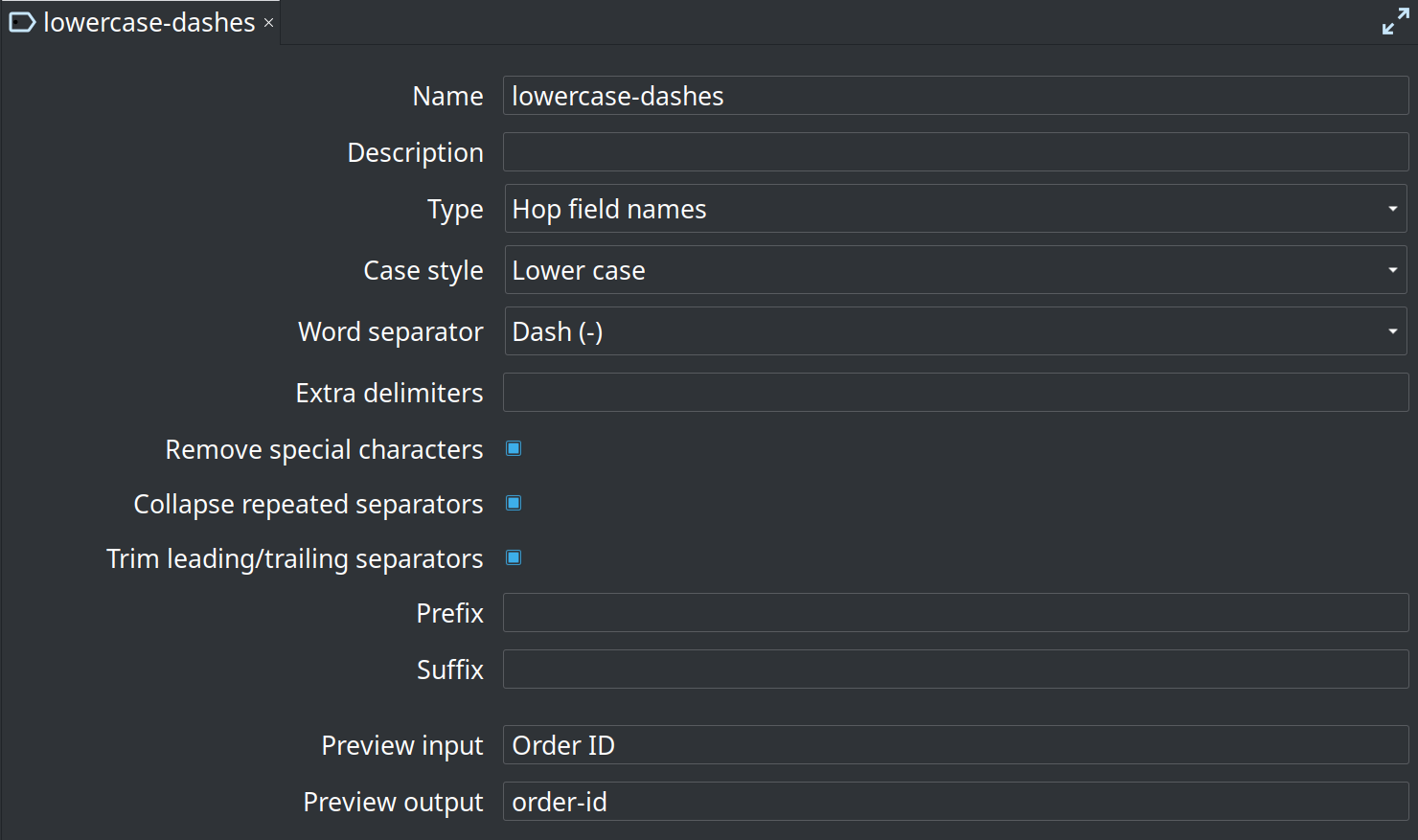
The screenshot above shows a scheme named lowercase-dashes: lower case words joined with dashes, so Order ID previews as order-id.
| Option | Description |
|---|---|
Name |
Unique metadata name of this scheme. |
Description |
Optional free-text description. |
Type |
Target kind. General applies to every name field unless a scheme of the widget’s specific type exists (Hop field, transform, action, pipeline, workflow, metadata, variable, database table, database column, file, or folder). File schemes rewrite only the last path segment and keep the parent folder and the file extension ( |
Case style |
|
Word separator |
How words are joined when not using camel/Pascal case: none, underscore ( |
Capitalize first word |
When enabled, uppercase the first character of the first word. Typical for transform and action names with a space separator ( |
Extra delimiters |
Additional characters treated as word boundaries (beyond spaces, |
Remove special characters |
When enabled, strip non letter/digit characters from each word. |
Collapse repeated separators |
When enabled, collapse repeated separators such as |
Trim leading/trailing separators |
When enabled, remove separators at the start or end of the result. |
Prefix / Suffix |
Optional strings prepended or appended after the transform. |
Preview input / output |
Live sample showing how the current options transform a name. |
Examples
| Input | Case style | Word separator | Result |
|---|---|---|---|
|
Lower case |
Underscore ( |
|
|
As is |
Underscore ( |
|
|
camelCase |
_ |
|
|
PascalCase |
_ |
|
|
Upper case |
Underscore ( |
|
|
Lower case |
Dash ( |
|
|
Lower case |
Space |
|
|
Lower case |
Space |
|
|
Lower case |
Underscore ( |
|
|
Lower case |
Underscore ( |
|
Applying from a name field
The screenshot below shows an action name field with the N indicator. Hover it for the shortcut reminder; click it to open the scheme in a dialog.

-
Create at least one Naming Scheme in the Metadata perspective (pick the type that matches the field).
-
Focus a name widget — transform name, action name, a field-name cell, a table name, a file or folder path, a variable or parameter name, …
-
Press
CTRL-SHIFT-N(orCTRL-SPACEon name fields that do not accept variables). -
If several schemes of that type exist, pick one. The list shows a live preview (
Order ID → order_id). -
The current identifier is replaced. Values that already contain
${…}are left unchanged.
To review or change the rules instead of applying them, click the N indicator. That opens the scheme in a dialog (or a picker when more than one scheme matches the field type). It does not open another tab in the metadata perspective. If no scheme of that type (and no General scheme) exists yet, Hop creates one of the matching type and opens it for you to save.
The same shortcut works on F2 inline rename in the Metadata and File Explorer trees (metadata names, file names, and folder names). There is no N indicator on those tiny tree editors — press CTRL-SHIFT-N after F2.
Applying from TableView
-
Open a transform or dialog that shows a field list (or any other editable table).
-
Ensure table toolbars are visible (Hop Gui options).
-
Click the Apply a Naming Scheme to a column toolbar icon (label / tag icon on the TableView toolbar).
-
Select the column to rename if the table has more than one name column.
-
Select a Naming Scheme of the matching type.
-
Confirm — values in non-empty rows are updated. Use the table Undo action if needed.
CTRL-SHIFT-N on a focused cell applies the scheme to that cell only. The toolbar is the bulk action.
|
Example: CSV File Input fields
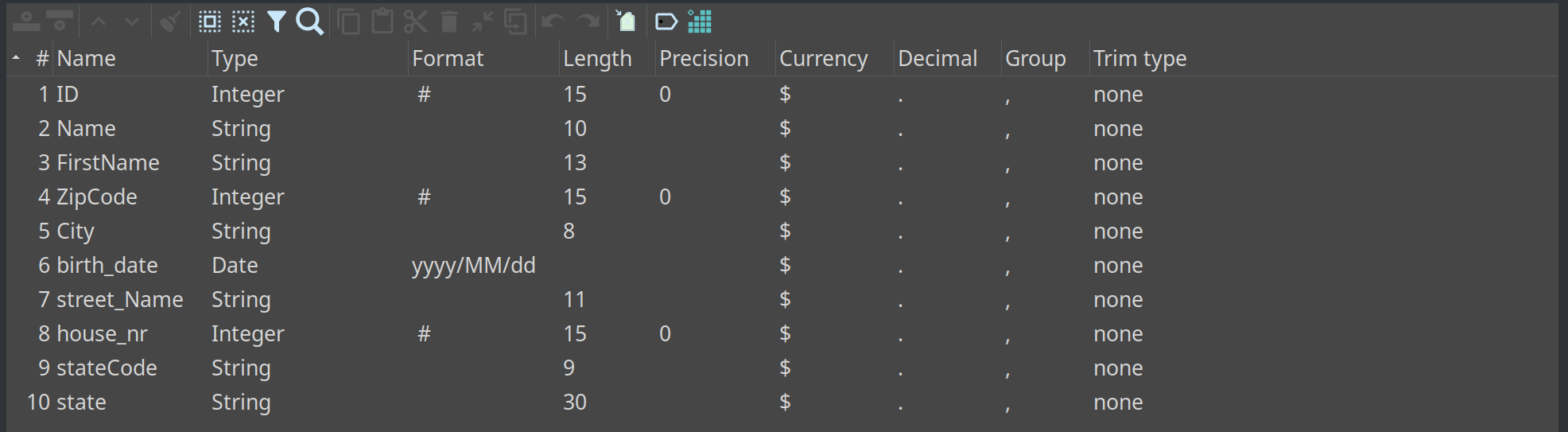
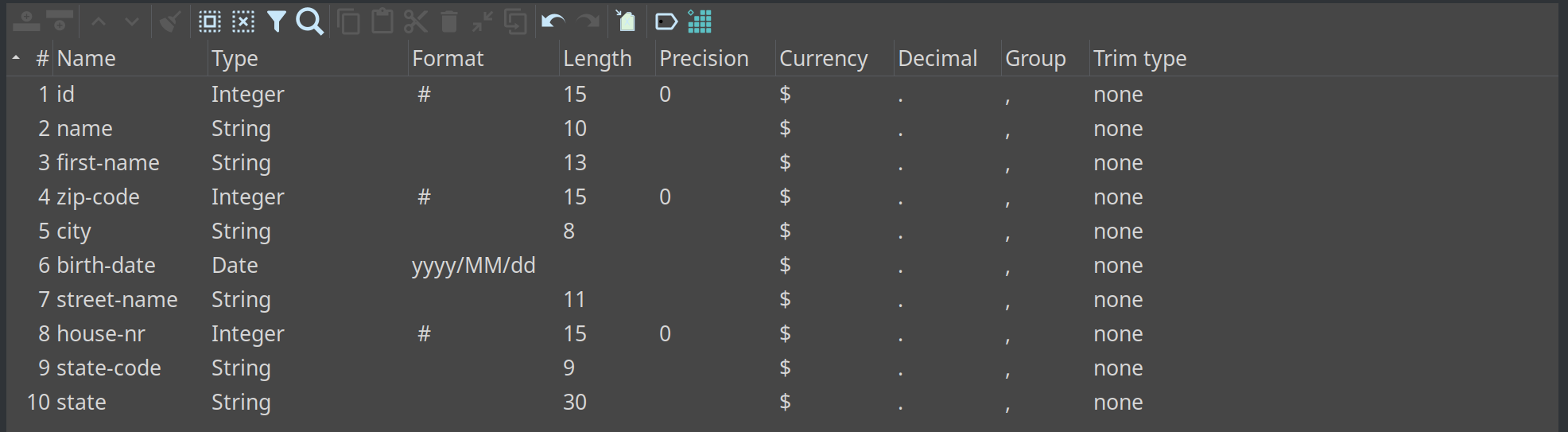
The following example uses the lowercase-dashes scheme on the Name column of a CSV File Input field list.
Before — mixed styles (ID, FirstName, birth_date, stateCode, …):
After — consistent lower-case names with dashes (id, first-name, birth-date, state-code, …):
Types as plugins
The Type combo lists every registered naming-scheme kind. Built-in kinds include General, Hop field/transform/action/pipeline/workflow/metadata/variable, database table/column, file, and folder.
Other plugins can add kinds without changing Hop. For example hop-data-vault can register dv-hub, dv-satellite, dv-link, dm-dimension, dm-fact, and so on. Create one Naming Scheme metadata object per kind (or one General scheme). Use one scheme per type in a project so CI has a single expected spelling.
Kettle / PDI import
When you import a Kettle/PDI folder, Hop looks for naming schemes in the target project’s metadata/naming-scheme/ folder (the same Json metadata provider the import writes connections into).
-
In Hop Gui the import dialog has a Naming scheme for connections line on the Metadata tab. New and Edit stay in memory until you click Import, which writes the selected scheme to the target project’s
metadata/naming-scheme/folder if it is not there yet. The line also lists schemes already in that folder and in the current project. -
From the command line, put the JSON files in
<output>/metadata/naming-scheme/first, or pass--naming-scheme <name>.
The selected (or unique Hop-metadata / General) scheme is applied to every imported relational connection name and to every transform/action field annotated RDBMS_CONNECTION. Names that only differ by case are always collapsed to one spelling, even when no scheme is present.
Checking names in CI
A name is valid when applying the matching scheme leaves the string unchanged. Empty values, <null>, and values that contain ${…} are skipped.
The same check runs in Hop Gui Verify this pipeline / Verify this workflow (errors only) and from the command line:
hop naming-check --project my-project
hop naming-check --path /path/to/project --format json --require-scheme
hop naming-check --type hop-field,hop-transform
-
Exit
0when there are no errors. -
Exit
1when at least one name would be rewritten (or when--require-schemeis set and a type has no scheme). -
Exit
2on unexpected failure (file load issues are warnings). -
--format jsonprints one object per finding for GitHub Actions or other reporters.
Example GitHub Actions step after Hop is on PATH and the project is checked out:
- name: Check naming schemes
  run: hop naming-check --project my-project --require-scheme
Create one General scheme (or one scheme per type) in the project’s metadata. There is no --fix flag: rewriting committed pipelines is a separate, explicit action.