
Hop setup
hop setup configures the launcher environment variables that Hop reads before Java starts.
This is different from hop conf, which edits hop-config.json (projects, system variables, GUI options).
Without these variables Hop uses the installation config/ and audit/ folders. After an upgrade those folders are gone. Setup writes the variables to your user environment, a shell startup file, and/or a hop-env script so configuration lives outside the install.
Recommended folders
| Variable | Linux / macOS | Windows |
|---|---|---|
${HOP_CONFIG_FOLDER} |
|
|
${HOP_AUDIT_FOLDER} |
|
|
You can also set ${HOP_JAVA_HOME}, ${HOP_OPTIONS} and ${HOP_SHARED_JDBC_FOLDERS}.
Hop Gui
Open the configurator from:
-
Tools → Configure Hop environment…
-
The Welcome dialog topic Environment setup
-
The first-start question, when
${HOP_CONFIG_FOLDER}is not set
On first start Hop asks whether to keep configuration outside the installation folder:
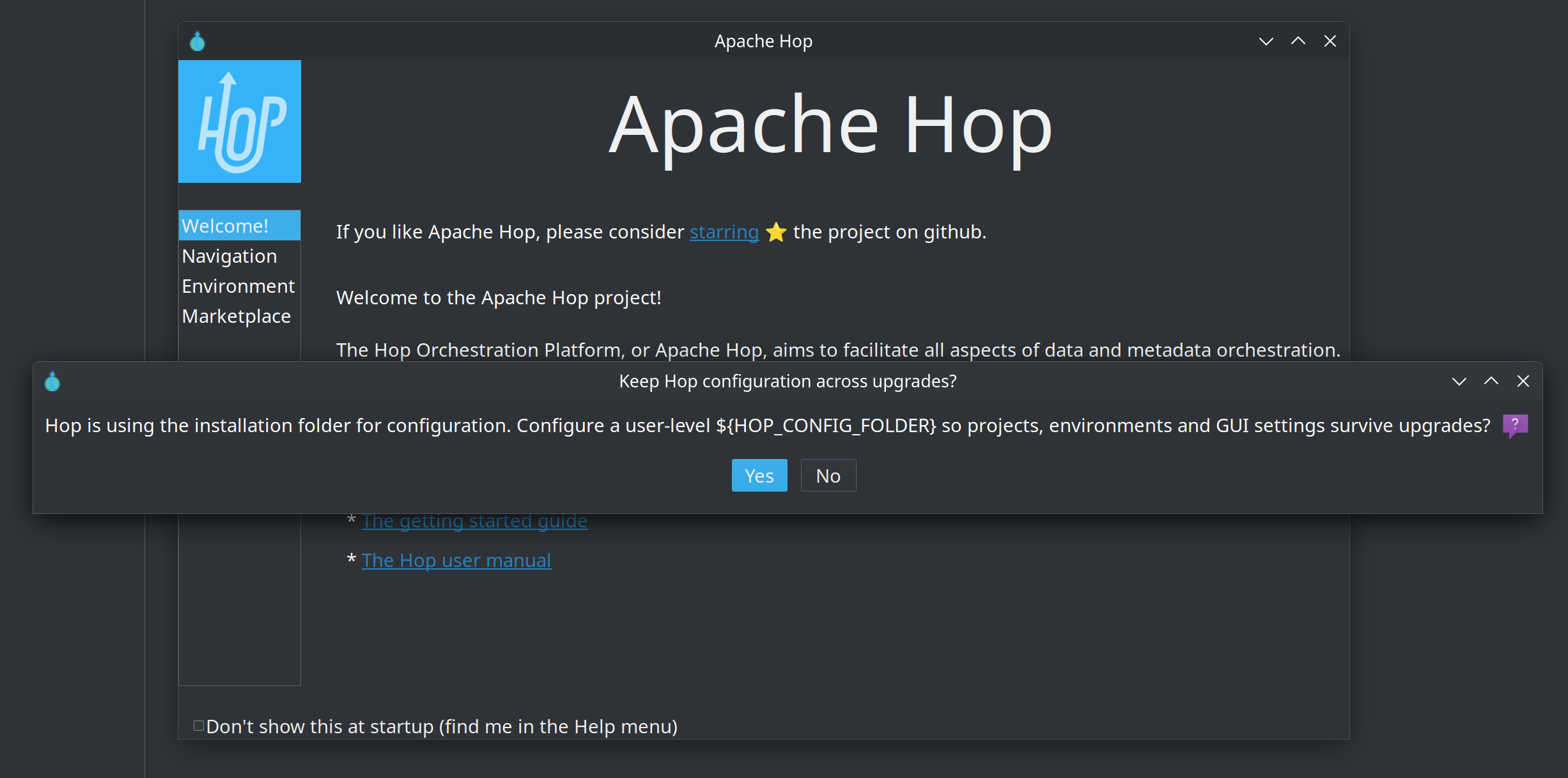
Yes opens the configurator with the recommended folders filled in. No skips the prompt (you can still open it from the Tools menu).
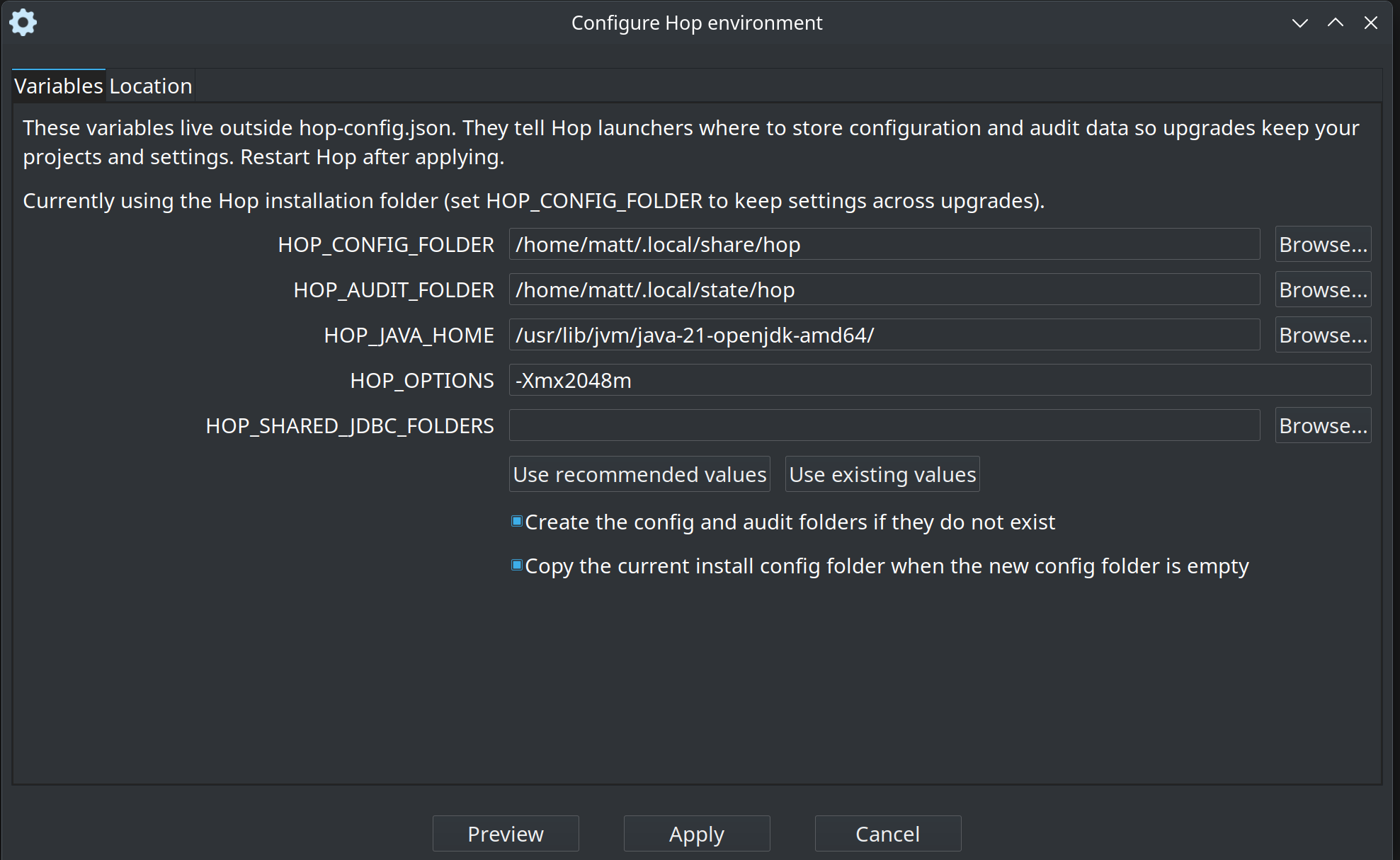
Variables tab
Set ${HOP_CONFIG_FOLDER}, ${HOP_AUDIT_FOLDER}, ${HOP_JAVA_HOME}, ${HOP_OPTIONS} and ${HOP_SHARED_JDBC_FOLDERS}.
-
Use recommended values — platform folders (
~/.local/share/hopand~/.local/state/hopon Linux/macOS,%USERPROFILE%\.hop\configandauditon Windows). -
Use existing values — the current environment, or
./configand./auditwhen those variables are unset. -
Create the config and audit folders and Copy the current install config folder when the new config folder is empty.
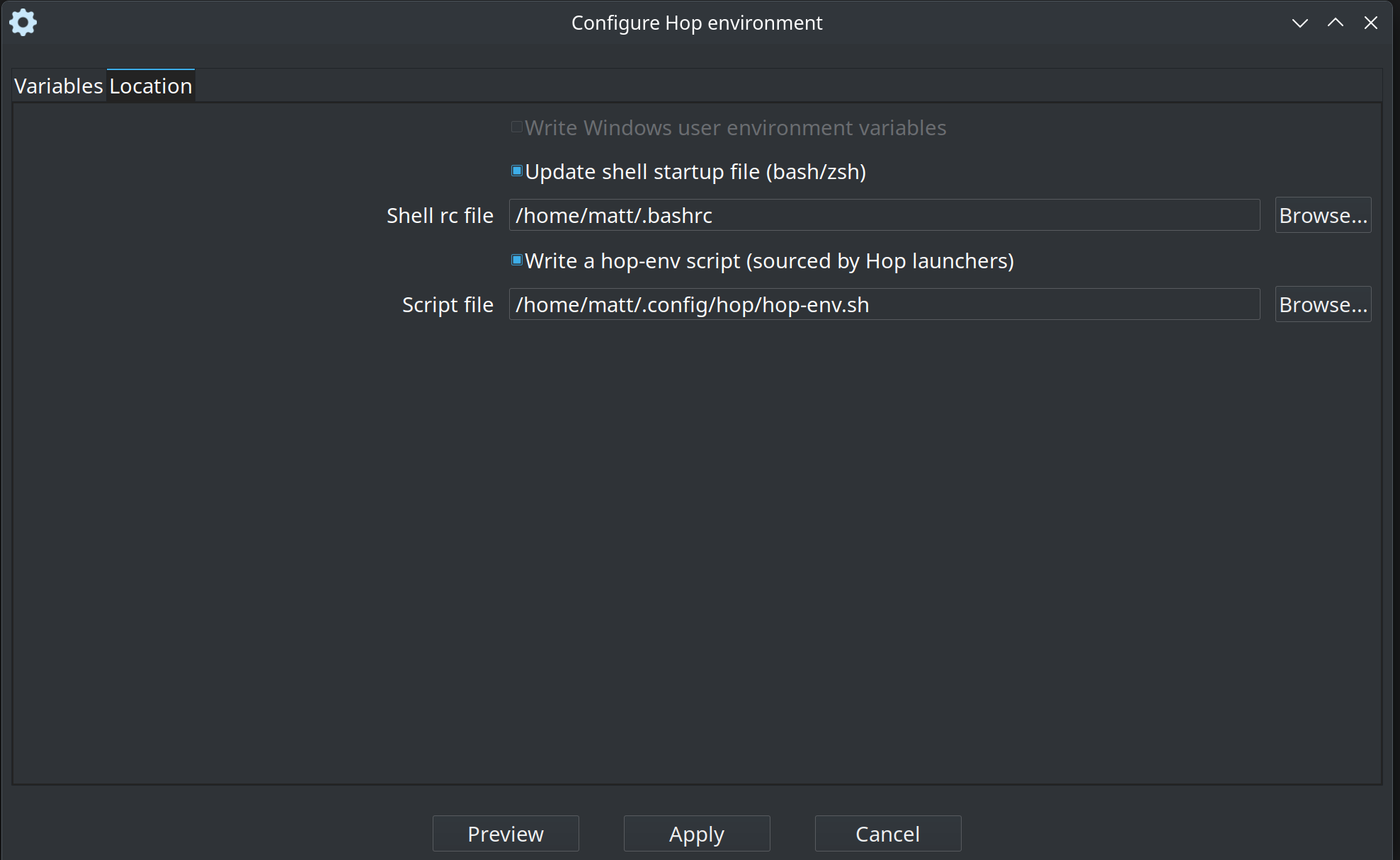
Location tab
Choose where to write the variables:
-
Windows user environment variables
-
Shell startup file (
~/.bashrcor~/.zshrc) -
A
hop-envscript sourced by Hop launchers (~/.config/hop/hop-env.shor%USERPROFILE%\.hop\hop-env.cmd)
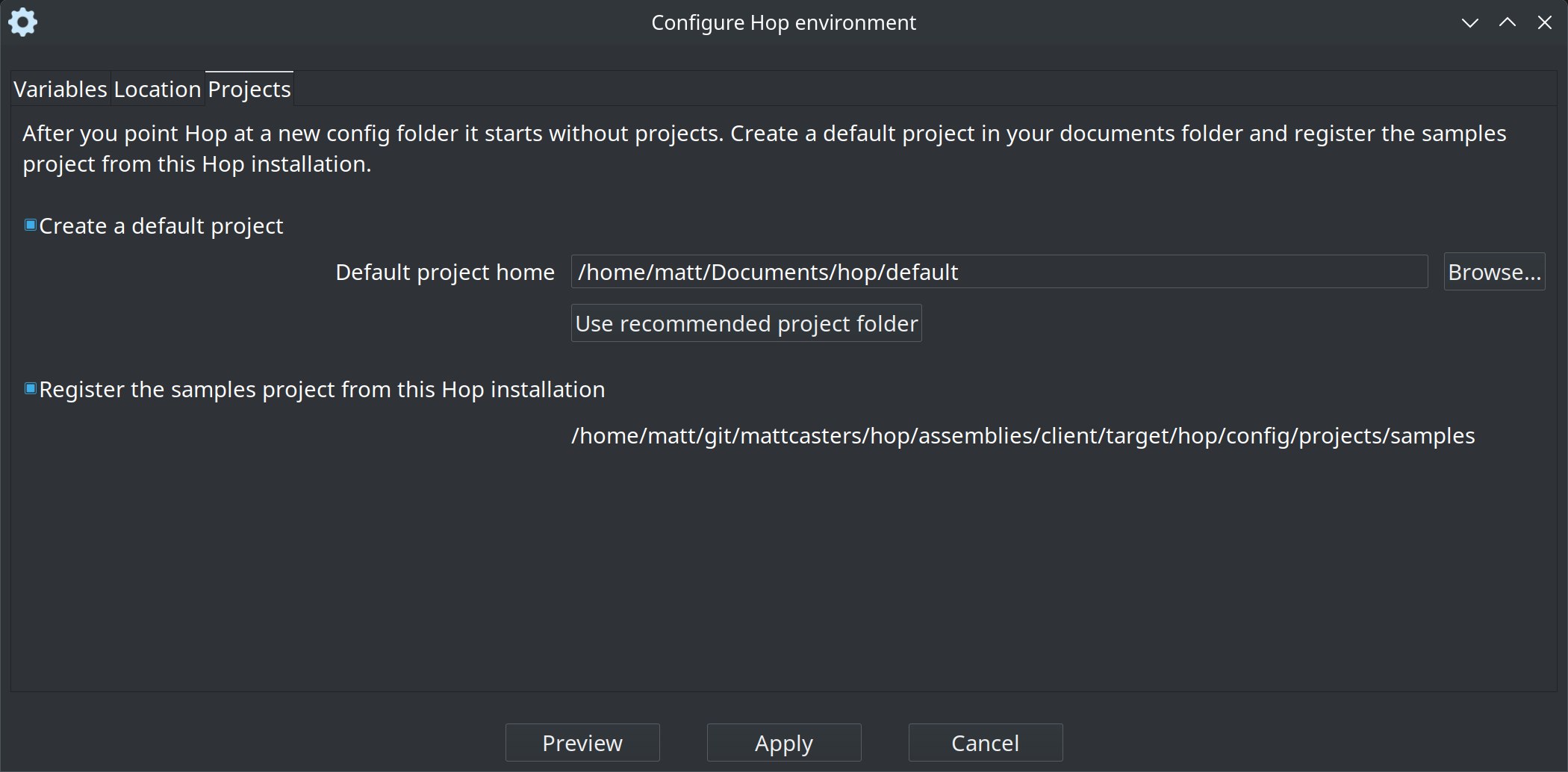
Projects tab
A new ${HOP_CONFIG_FOLDER} starts without projects. On the Projects tab you can:
-
Create a default project in a user documents folder:
-
Linux:
~/Documents/hop/default -
macOS:
~/hop/default -
Windows:
%USERPROFILE%\Documents\Hop\default
-
-
Register the samples project from this Hop installation (
<install>/config/projects/samples) so the examples stay available after the config folder moves.
Both options are selected by default. Apply writes them into the new hop-config.json. An empty default project home is created from the install default-project template. That project includes a local pipeline run configuration and a local workflow run configuration. If the template does not contain them, setup adds them, together with the local execution info location and data profile they use.
Preview and apply
Preview shows the planned files without writing them:
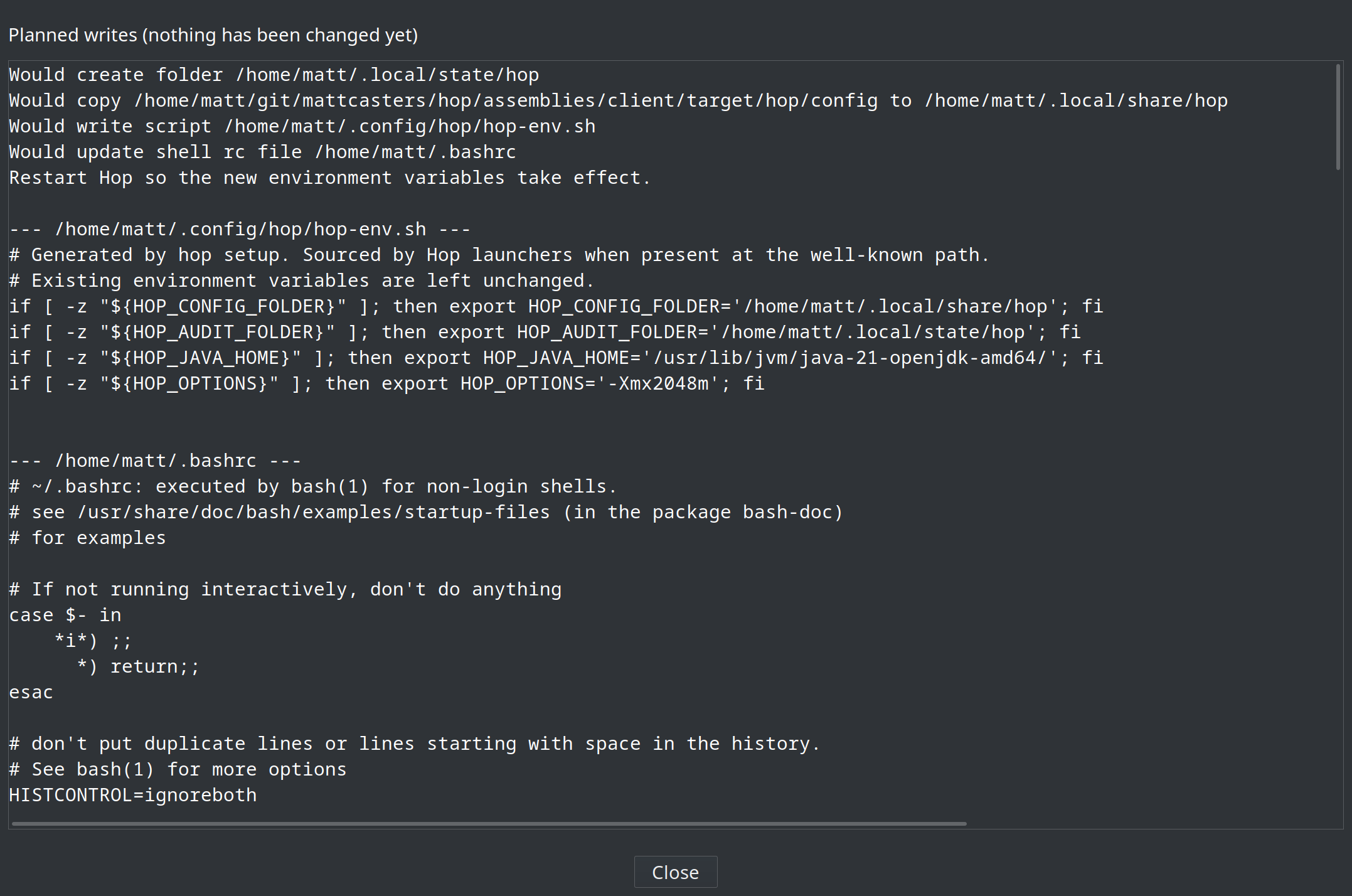
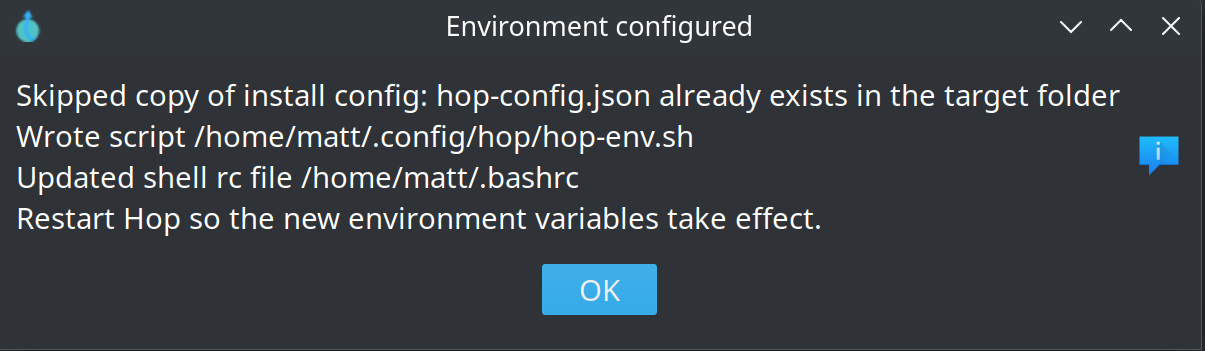
Apply writes the selected targets. Restart Hop so the new folders take effect:
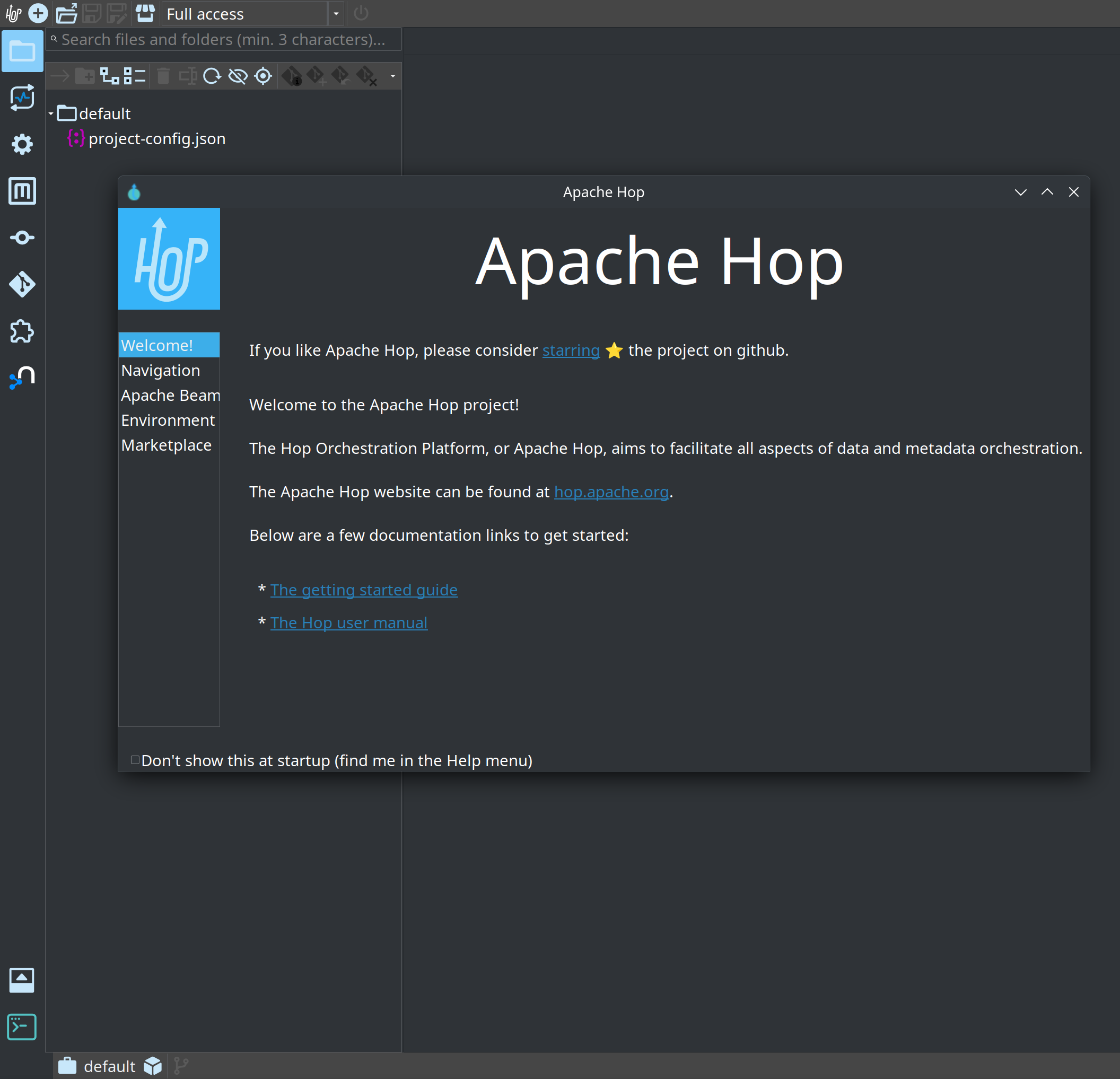
After restart, Hop Gui opens the new default project:
Hop Web does not write the server operating system environment. Use Preview and apply the generated script on the machine that starts Hop.
Command line
From the Hop install directory:
./hop setup
./hop setup show
./hop setup apply --defaults
./hop setup apply --defaults --dry-run
./hop setup apply --config-folder /data/hop/config --audit-folder /data/hop/audit --script
On Windows use hop.bat setup apply --defaults.
apply options
| Option | Description |
|---|---|
|
Value for |
|
Value for |
|
Value for |
|
Value for |
|
Value for |
|
Fill unspecified config/audit folders with the recommended paths and register a default project plus samples |
|
Write Windows user environment variables |
|
Update |
|
Override the rc file path |
|
Write a hop-env script |
|
Override the script path (default: |
|
Create a default project (implied by |
|
Home folder of the default project |
|
Register |
|
Copy |
|
Create the config and audit folders (default: create) |
|
Print the planned files without writing |
If you do not pick a write target, Hop uses:
-
Windows: user environment + hop-env script
-
Linux / macOS: shell rc file + hop-env script
Hop launchers source the well-known hop-env script when it exists, so desktop shortcuts pick up the folders after a restart. An environment variable that is already set is left unchanged.
To skip the first-start prompt set ${HOP_NO_SETUP_DIALOG}=Y.