
Run and Debug a Workflow
Run your first Workflow
As with designing workflows, the steps to run a workflow are very similar to running a pipeline.
Click the 'run' button  in your workflow toolbar
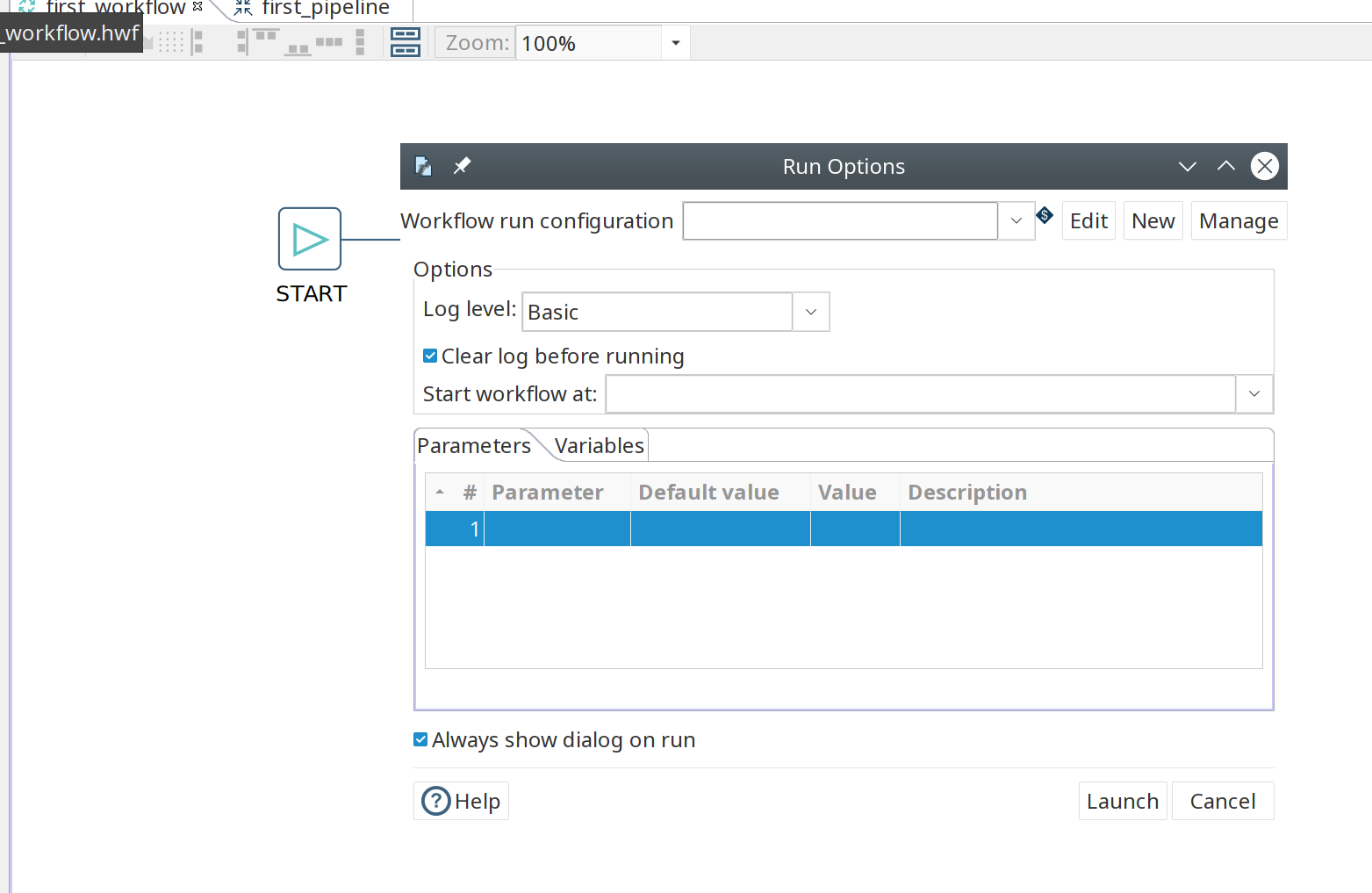
In the workflow run dialog, hit the 'New' button in the upper right corner to create a new 'Workflow run configuration'.
In the dialog that pops up, add 'Local Workflow' as the workflow configuration name and choose the 'Local workflow engine'.
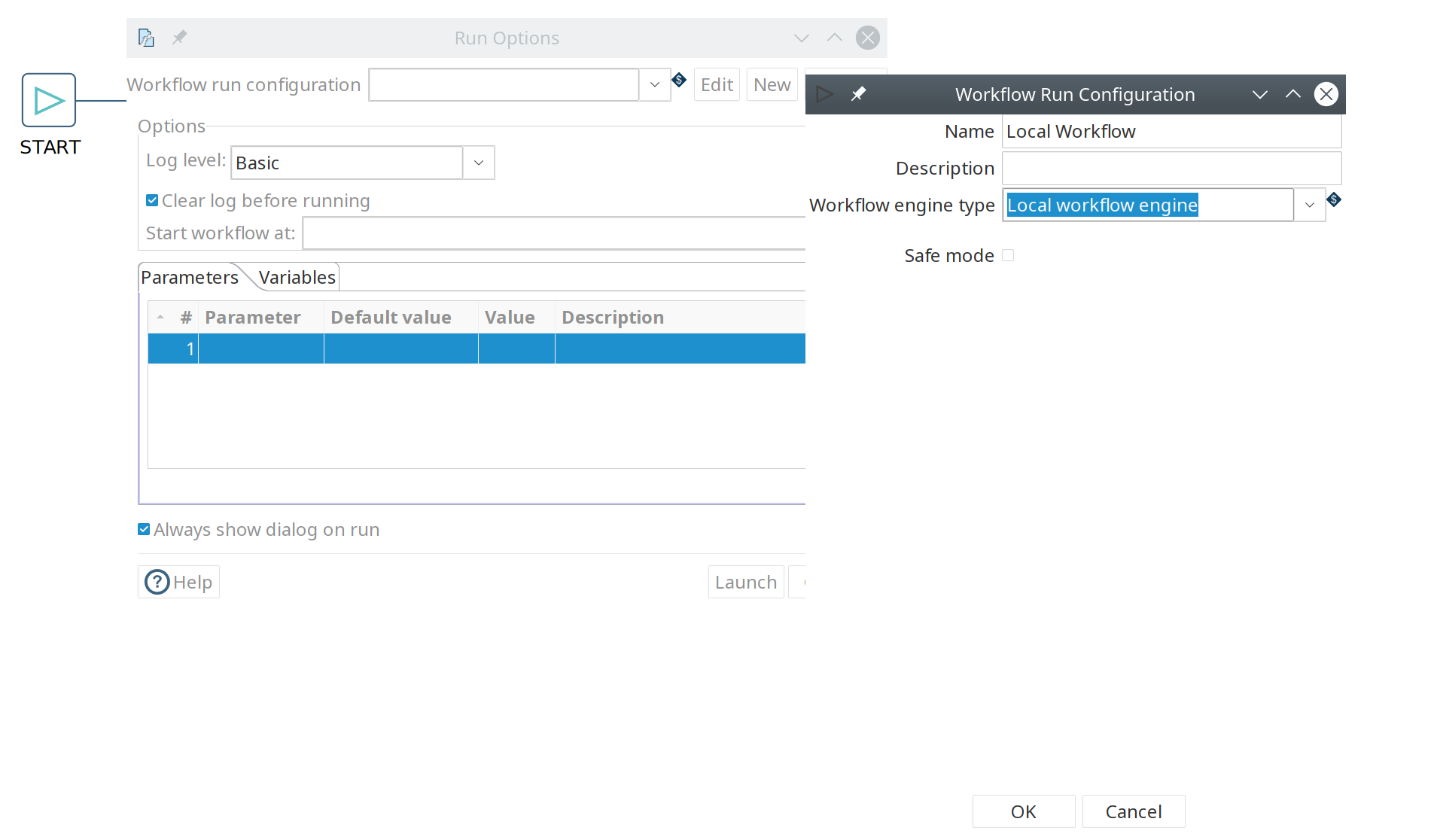
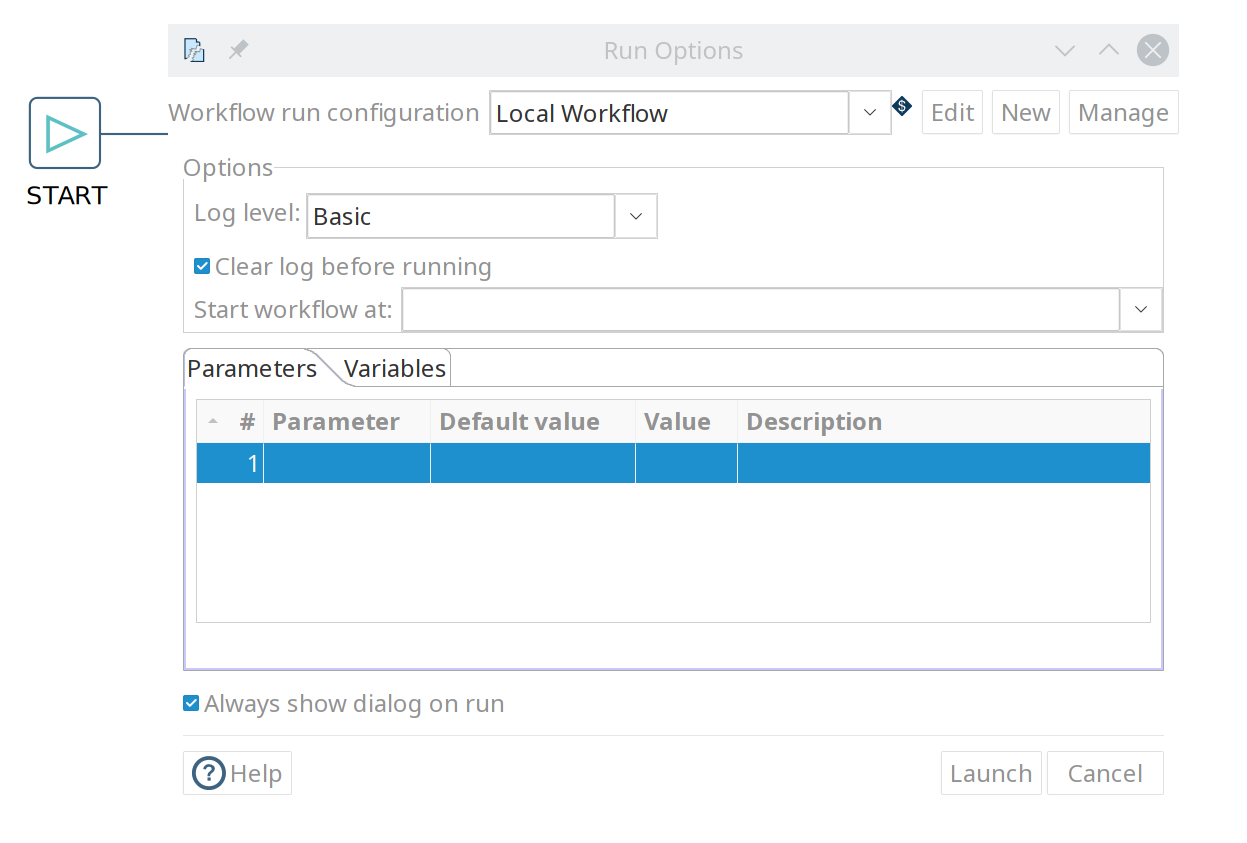
Click 'OK' to return to the workflow run dialog.
Choose the logging level as described below.
| LogLevel | Description |
|---|---|
Nothing |
Do not record any logging output. |
Error |
Only record errors in logging output. |
Minimal |
Only use minimal logging. |
Basic |
This is the default logging level. |
Detailed |
This logging level gives a detailed logging output. |
Debugging |
Results in a very detailed output for debugging purposes. |
Row Level |
Logging at row level. |
If the workflow has parameters, give them a value on the Parameters tab of this dialog, or leave the value empty to use the default value. See Working with parameters.
Make sure your configuration is selected and hit 'Launch'.
This workflow with our very basic pipeline should execute in less than one second. You’ll now have the execution results pane which again looks very similar to the pipeline execution results.